The Mod Builder is the editor built into the game. It creates a mod folder for you, edits its files through forms, shows a scenario on the real map, checks the mod for mistakes and uploads it to the Steam Workshop. It writes the same files you could write by hand, so you can switch between the two at any time.
If you have never made a mod, read Your first mod first. It explains the files the forms on this page are writing.
How to open it
There are two ways in, and they give you slightly different tools.
- From the main menu. Click MODS, then MOD BUILDER at the top of the MOD LOADOUT panel. This is the place to build and publish.
- From a running game. In a single-player game with one of your own mods enabled, the pause menu has a Mod Builder button. Opened this way, the builder can load your changes into the game you are playing and fire an event on demand. See Testing.
Esc (by default) steps back one level at a time: out of the map view, out of the editor, then out of the builder.
The start screen: your mods
The builder opens on a list of the mods it can find.
| Section | What is in it | Buttons |
|---|---|---|
| YOUR MODS | Mods in your own mods folders, and mods in folders you opened by hand. | EDIT opens the mod. OPEN FOLDER shows its folder on disk. |
| SUBSCRIBED MODS | Mods installed from the Steam Workshop. Steam manages those folders, so they cannot be edited in place. | COPY TO MY MODS makes a copy you can edit, under a new id and with no link to the original Workshop item. A mod you published yourself carries a YOURS badge and the button OPEN FOR EDITING, which keeps its id and its Workshop item, so your next publish updates it. |
| YOUR MOD FOLDERS | The paths of the folders you opened by hand. They are remembered between sessions. | FORGET stops watching a folder. The folder itself is not touched. |
Two buttons sit above the list.
- OPEN EXISTING MOD… opens a mod folder that lives somewhere else on your disk, for example a working copy kept in version control. Pick the folder that holds
mod.json. - CREATE NEW MOD opens the NEW MOD form.
Creating a mod
| Field | Notes |
|---|---|
| Mod name | The name players see. |
| Mod id | Filled in from the name as you type, and editable. Lowercase letters, numbers, dots, dashes and underscores. It is also the folder name. An id that another installed mod uses is refused. |
| Version | Starts at 0.1.0. It must have the form MAJOR.MINOR.PATCH. |
| Description, Era, Start year | Optional. |
| Location | Which of your three mods folders the mod’s folder goes into. The first one listed is the default. |
| What will this mod change? | Five checkboxes. Each one adds empty starter files. |
The checkboxes and what they create:
| Checkbox | Starter files |
|---|---|
| Scenario (countries, colors, provinces, units) | A scenario folder with scenario.json, countries_state.json and provinces_ownership.json. |
| Content (buildings, units, resources, technology) | Content/buildings.json, Content/units.json and Content/resources.json. |
| Game settings (balance values) | overrides/game_settings.json and overrides/laws.json. |
| Events (popups with choices and follow-ups) | Content/events/events.json. |
| Localization text | Content/localization/en.csv and tr.csv. |
You can leave them all off. Every page of the editor creates its file the first time you save an edit on it. Press CREATE, and the new mod appears under YOUR MODS.
Tick Scenario only if you mean it. A mod with a scenario/scenario.json is a scenario mod. The game runs one scenario at a time: the one carried by the single enabled mod that has one. With two scenario mods enabled, no scenario loads. A mod that only adds events, content or a theme does not need one. For the same reason, do not save edits on the Scenario page of such a mod, because saving creates that file.
The editor screen
EDIT opens the editor. Every page has the same frame.
 1
2
3
4
5
6
7
- BACK and the mod’s name. BACK returns to the list of mods. The name and id of the mod you are editing are next to it.
- The menu. Nine groups of pages, in the order you would build a mod: the mod itself, the world, the rules, research, politics, events, interface, text, publishing. Click a group’s heading to fold it.
- The page. The form for whatever you picked in the menu.
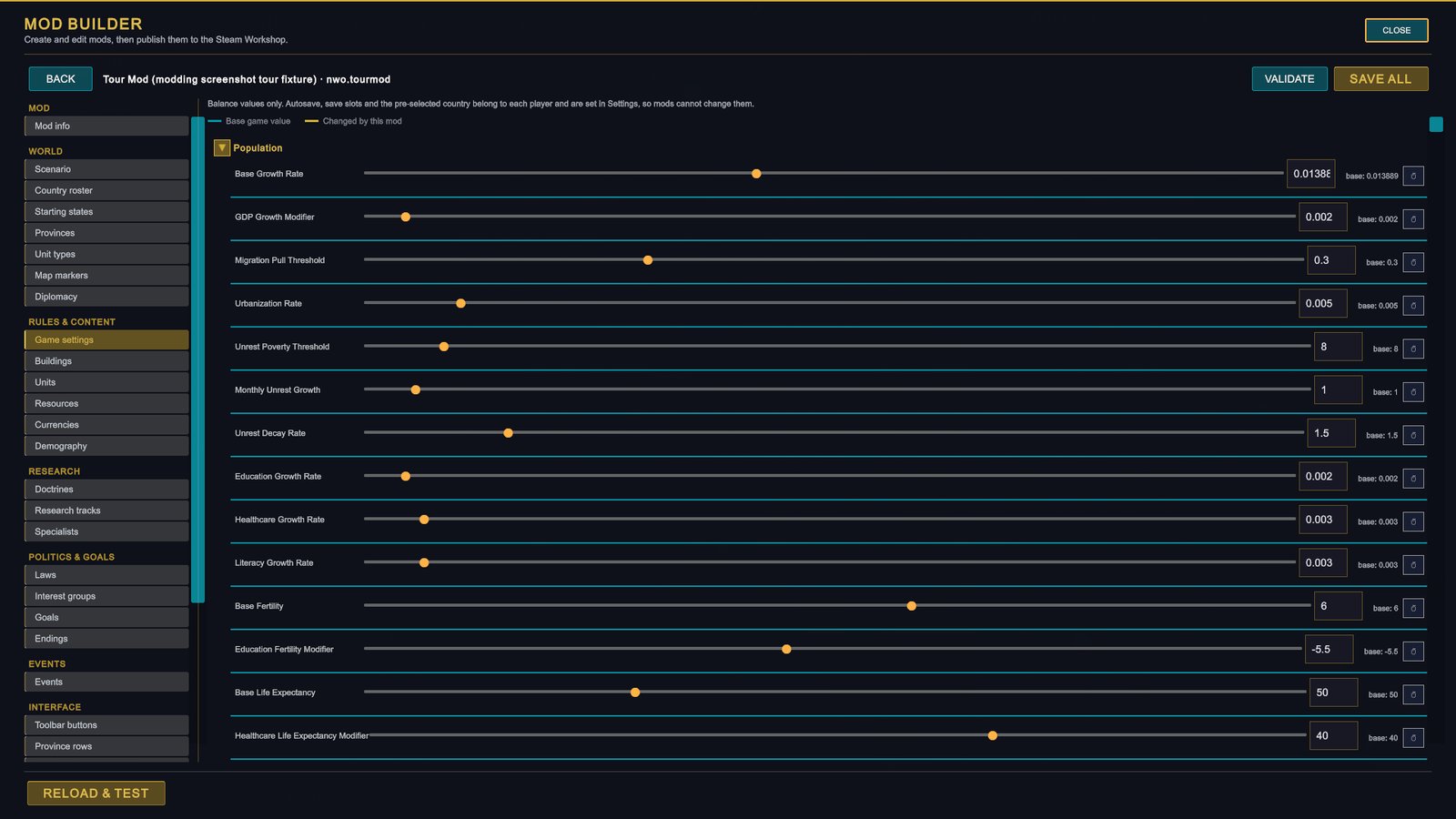
- The legend. Forms mark each field as Base game value or Changed by this mod. On this page every row also shows the base value, with a button that puts it back.
- VALIDATE and SAVE ALL. A note of unsaved changes appears beside them while you edit.
- RELOAD & TEST. In a running game this button reads APPLY TO RUNNING GAME instead.
- CLOSE. Leaves the builder.
Hover a menu entry to see what the page edits, where that shows up in the game (Used in) and which file it writes (Writes). Fields on the Game settings page add a Takes effect line: In a running game or New games only.
The pages, group by group
The names below are the ones in the menu. The file column is what the page writes inside your mod folder.
Mod
| Page | What you do there | File |
|---|---|---|
| Mod info | Set the mod’s name, version, author, description, picture, load order, dependencies and permissions. The top of the page shows the folder’s path with an OPEN FOLDER button. For a mod with scripts, a Script and event errors box lists what the last load reported. | mod.json |
The page also carries a notice headed THIS FOLDER IS YOURS. The builder only rewrites the files you edit on its pages. Code, art and any other file you add to the folder by hand is left alone, and is uploaded with the mod when you publish.
World
These pages describe a scenario: the world as it stands on day one.
| Page | What you do there | File |
|---|---|---|
| Scenario | Set the scenario’s name, its start date and its other general settings. | scenario/scenario.json |
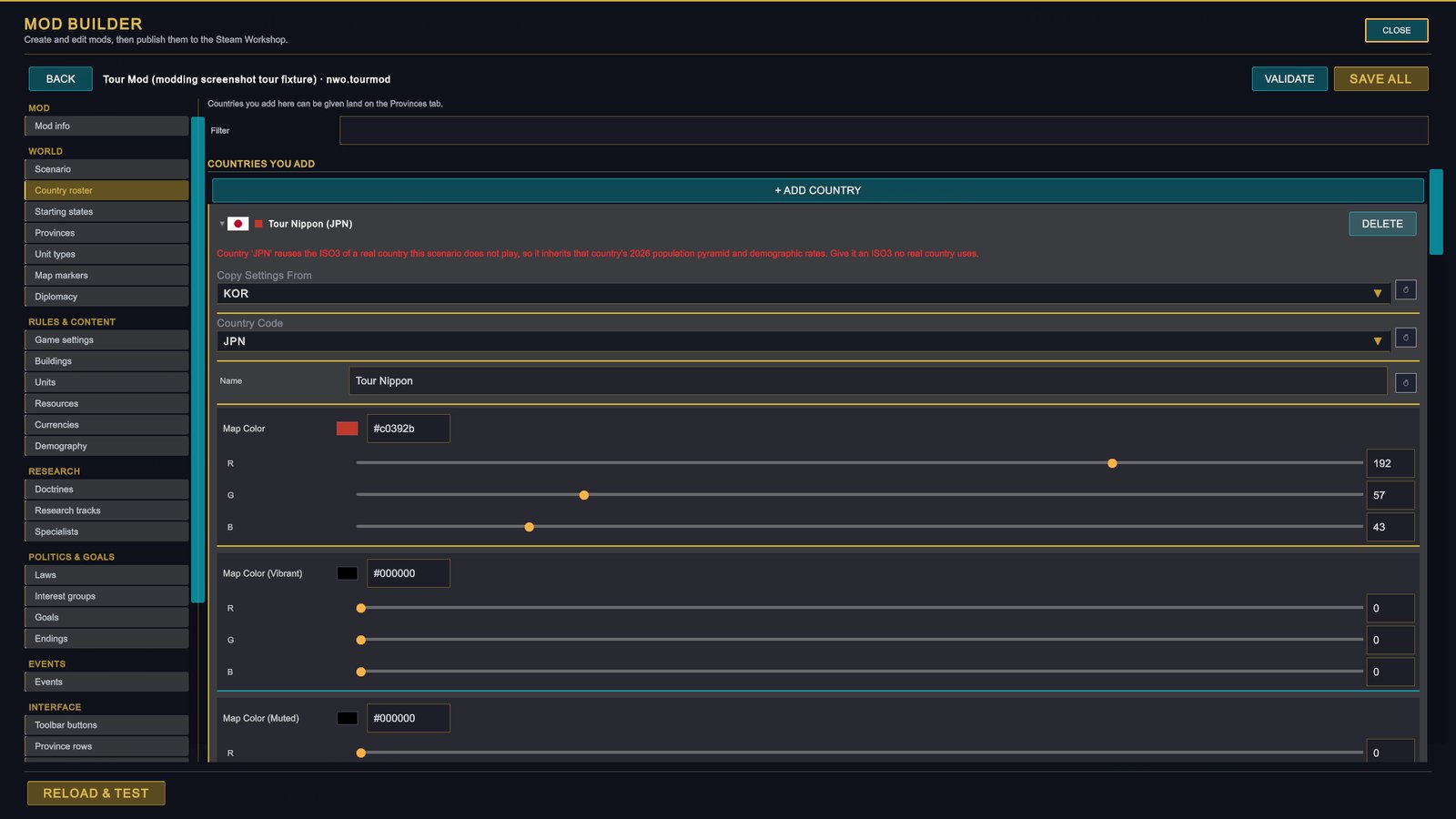
| Country roster | Add countries with + ADD COUNTRY (a code, a name, map colours, a flag, a leader, and a base country to copy settings from) and list the base game’s countries the scenario removes. | scenario/countries_add.json, scenario/countries_remove.json |
| Starting states | Override a country’s starting economy, politics and military. Tick a field to override it; unticked fields keep the country’s own starting value. | scenario/countries_state.json |
| Provinces | Hand provinces to other owners, change province data and place the starting armies, fleets and air wings, in a list or on the map. See The map preview. | scenario/provinces_ownership.json, scenario/provinces_data.json, scenario/units_deploy_*.json |
| Unit types | Define new unit types for the scenario. | scenario/units_define.json |
| Map markers | Choose the marker art units use on the map. | overrides/military_markers.json |
| Diplomacy | Set up day-one alliance organizations, alliances, treaties, wars already running and relation values. They are written once, when a new game starts. | scenario/diplomacy.json |
Rules & content
| Page | What you do there | File |
|---|---|---|
| Game settings | Change the game’s balance numbers, section by section. Each row shows the base value. Settings that belong to the player, such as autosave, are not here. | overrides/game_settings.json |
| Buildings | Change, add or disable buildings. | Content/buildings.json |
| Units | Change, add or disable unit types and their icons. | Content/units.json |
| Resources | Rename, re-price, re-categorise or disable resources. A mod cannot add a resource. | Content/resources.json |
| Currencies | Set the national currencies money is shown in. Display only. | Content/currencies.json |
| Demography | Set a country’s starting age structure, life expectancy and fertility. | Content/demography/seeds.json |
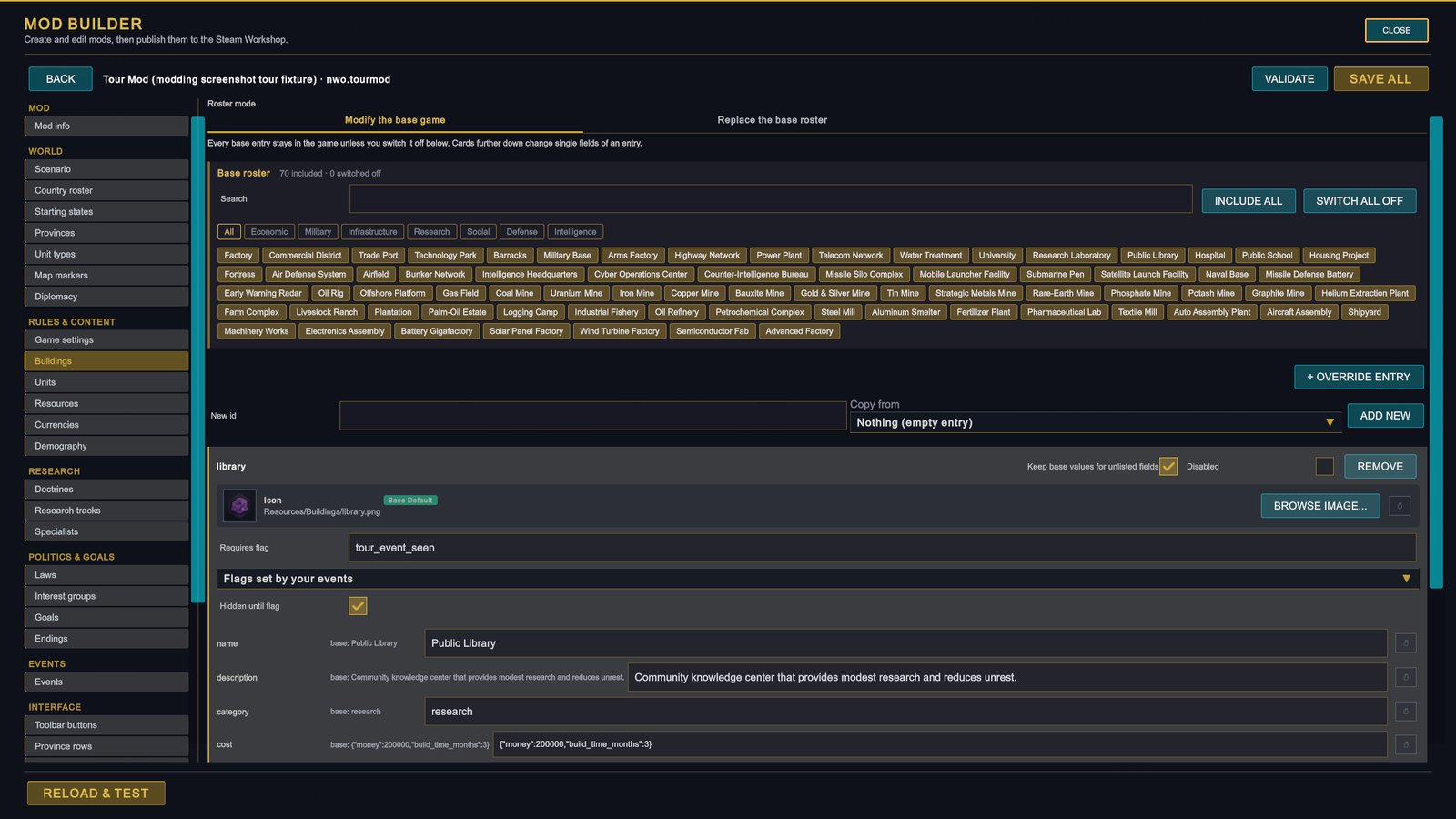
Buildings, Units and Resources share one layout. Roster mode decides what the file means: Modify the base game keeps every base entry unless you switch it off, and Replace the base roster keeps only the entries you include. Under it, the Base roster shows every base entry as a chip you can switch off, with INCLUDE ALL and SWITCH ALL OFF. + OVERRIDE ENTRY opens a card for a base entry, where each field shows the base value beside yours. ADD NEW creates an entry of your own from a new id, optionally copied from an existing one; the Resources page does not have it. If a scenario names roster files of its own in scenario.json, these pages edit those files instead.
Research
| Page | What you do there | File |
|---|---|---|
| Doctrines | Retune the values and text of the Knowledge Network’s doctrines, and add branches or extra tiers of your own beside them. | overrides/doctrines.json |
| Research tracks | Build research tracks of your own: graphs of nodes with costs, prerequisites and effects. Drag from one node to another to make the first a prerequisite. | Content/research_tracks.json |
| Specialists | Add named specialists that countries can hire to speed up research, construction, recruitment or production. | Content/specialists.json |
Politics & goals
| Page | What you do there | File |
|---|---|---|
| Laws | Change or add national laws and their options. | overrides/laws.json |
| Interest groups | Retune the age bands and interest groups of the electorate. They cannot be added, removed or renamed. | overrides/interest_groups.json |
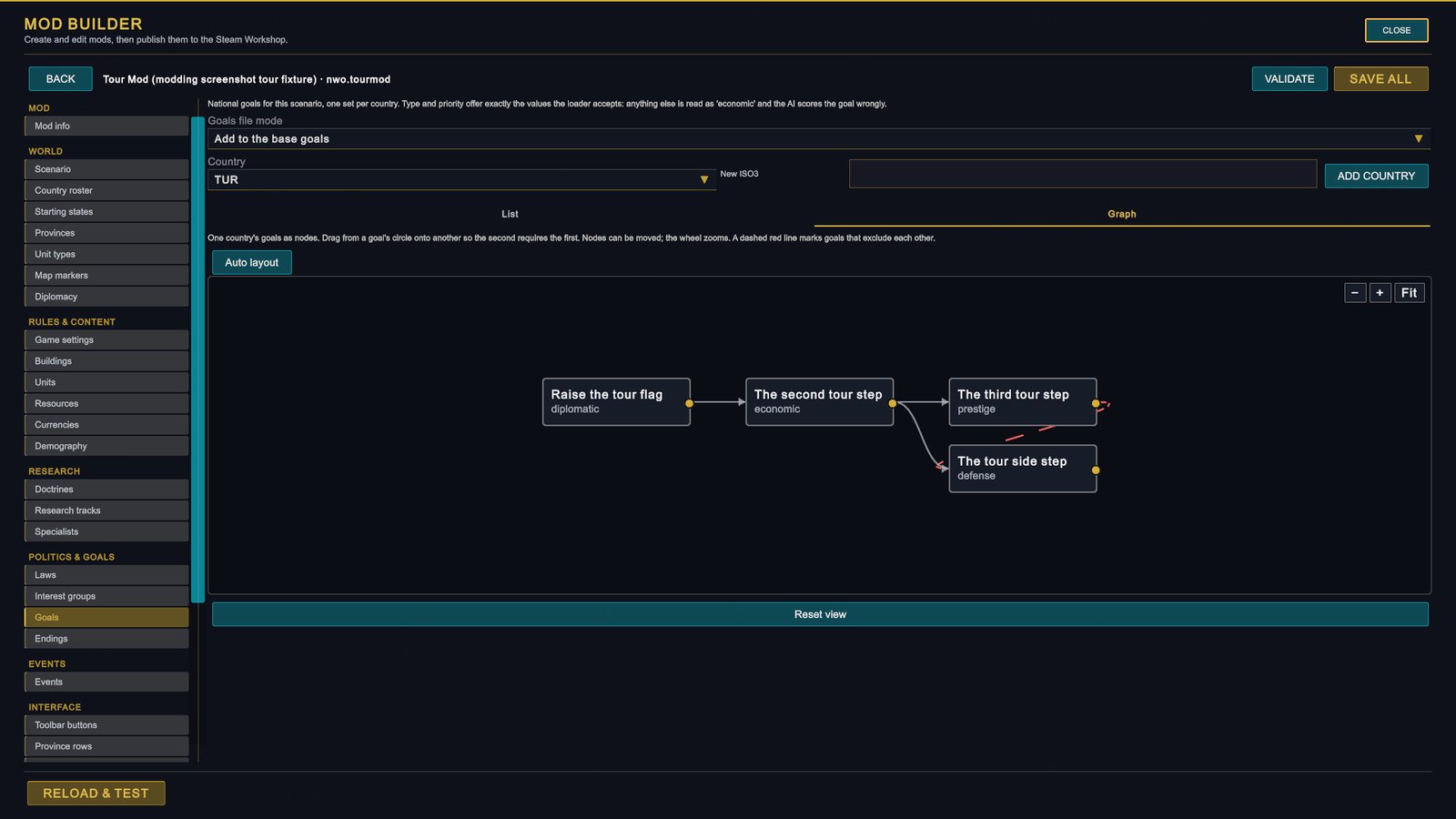
| Goals | Write national goals for a scenario, one set per country, with their order and rewards. Goals file mode either adds your goals to the base game’s or replaces them. | scenario/national_goals.json |
| Endings | Define how the scenario can be won or lost. Each ending is checked once a month, in order, and the first one whose conditions hold ends the game. The page needs a mod with a scenario. | scenario/victories.json |
The Goals page has two views. List edits one goal at a time. Graph shows a country’s goals as boxes: drag from one goal’s circle onto another so that the second requires the first.
Events
| Page | What you do there | File |
|---|---|---|
| Events | Write the mod’s events: when they fire, their options and what each option does. | Content/events/*.json |
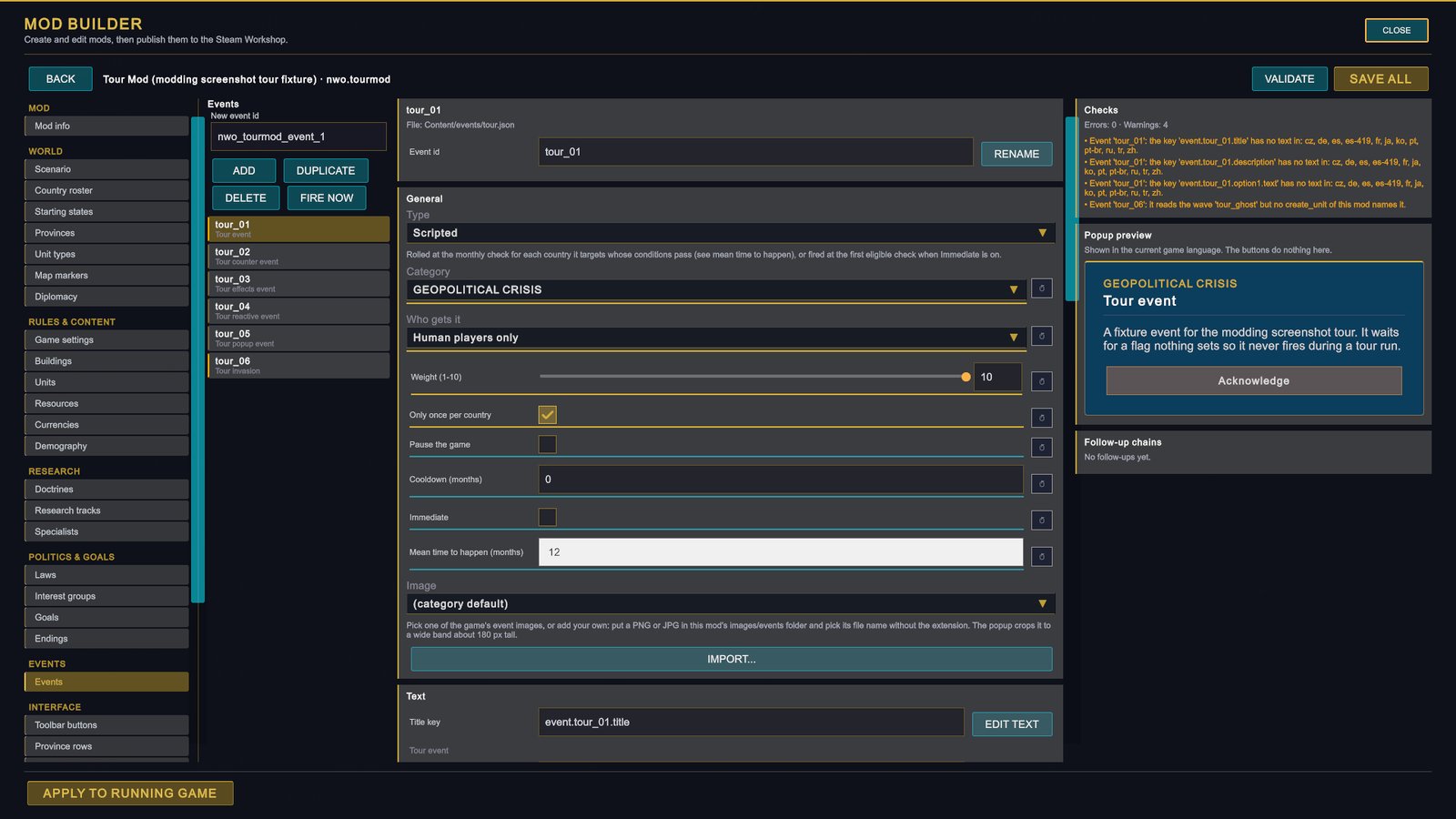
The page has three columns.
- Left: the event list. Type an id under New event id and press ADD for a new event. DUPLICATE copies the selected one, and DELETE asks for a second click.
- Middle: the selected event. Its id (with RENAME, which also updates the follow-ups that point to it), then Type, Category, Who gets it, Weight (1-10), Only once per country, Pause the game, Cooldown (months), Immediate, Mean time to happen (months) and Image. Below them are the text keys with EDIT TEXT, the conditions (ADD CONDITION), the triggers of a reactive event (ADD TRIGGER), and the options (ADD OPTION) with their effects (ADD EFFECT).
- Right: feedback. Checks lists errors and warnings as you edit. Popup preview shows the popup in the current game language. Follow-up chains shows which events this one leads to.
ADD puts a new event in Content/events/events.json, with a title key and one option for you to fill in. The fields have tooltips that say what each value does in the game, so the page doubles as a reference while you write.
Interface
Everything in this group needs the InjectUI permission, which is part of mod.json and is set on Mod info. Players who do not use the mod see none of it.
| Page | What you do there | File |
|---|---|---|
| Toolbar buttons | Add buttons to the HUD toolbar. | Content/ui/inject.json |
| Province rows | Add rows to the Province panel. | Content/ui/inject.json |
| Country rows | Add rows to the country panel. | Content/ui/inject.json |
| Toolbar style | Style the mod’s toolbar buttons. | Content/ui/inject.json |
| HUD theme | Recolour and resize the interface, one colour or size value at a time. Rows you leave alone keep the game’s own value. | Content/ui/theme.json |
| HUD slots | Replace or hide parts of the HUD, such as the top bar, the sidebar or the outliner. Each slot is set to Vanilla, Replace or Hide. | Content/ui/layout.json, Content/ui/layouts/*.uxml |
| HUD trackers | Add up to three gauges to the top bar, each showing a number of your mod. | Content/ui/hud_trackers.json |
Text
| Page | What you do there | File |
|---|---|---|
| Translations | Edit the mod’s text in each of the 13 languages. Pick a language, filter, and edit the values in place. Adding or removing a key writes all 13 files at once. Rows whose text still matches English are marked same as English. | Content/localization/<language>.csv |
A key that exists in one language and not in another shows players of the missing language the raw key, which is why the page adds a new key to every language file.
Publish
One page, Publish. See Publishing.
The map preview
The Provinces page has two views, LIST and MAP.
LIST is a searchable table of provinces. Assign a province to another country, or use Bulk reassign country to move everything one country owns to another in one step. RESET clears your assignments.
MAP shrinks the builder to a column on the right and gives you the world map. Move the camera as you do in the game, and click a province to select it. The column has three modes.
| Mode | What you do on the map |
|---|---|
| Territory | Click a province, then pick its new owner from the flag list. The map recolours at once, and the borders and country names follow a moment later. The column shows the province’s base owner. |
| Deployments | Click a province, then add what starts there with + Army Stack, + Naval Fleet or + Air Wing, and set the owner, the unit types and their numbers. The forces you place are drawn on the map. An air wing only appears in a province with an airbase. |
| Data | Change the population, terrain and resources of single provinces for the start of a new game. Tick Paint with a brush and every click paints the brush’s values onto the province you click. |
The column has its own SAVE ALL button, so you do not have to leave the map to save. BACK, or Esc by default, returns to the full editor.
The preview shows your scenario’s borders and forces without starting a game, including countries you added on Country roster.
Saving
- SAVE ALL writes every file you changed and reports how many. Nothing is written before you press it.
- A page whose file does not exist yet says so. The file is created when you save an edit on that page.
- VALIDATE, APPLY TO RUNNING GAME and the publish button save first by themselves. RELOAD & TEST reads the files on disk, so press SAVE ALL before it.
Save before you leave the editor. Leaving with BACK or CLOSE discards unsaved changes. Esc (by default) warns once when you have unsaved changes, and a second press discards them.
Validation messages
VALIDATE saves your edits and checks the mod’s folder without loading it. A report opens with a title that counts the errors and warnings.
- Lines are grouped by file, with Whole mod for problems that belong to no single file. Each line starts with a marker: ◆ for an error, ▲ for a warning, • for a note.
- Click a line to open the page that edits that file.
- COPY REPORT copies the list as text, for a bug report or a question to another modder.
What the check covers:
| Area | Examples |
|---|---|
| File format | A file that does not match its schema. A field the game does not know, which is usually a misspelling. A JSON file the game does not read. |
| Manifest | An id in an unusual form, or a folder not named after the id. A version that is not MAJOR.MINOR.PATCH. A path in mod.json that does not exist. A dependency that is not installed. |
| Content | A scenario that does not load. Text keys that exist in some languages and not in others. Everything the Events page checks. |
| Packaging | A folder inside the mod that has its own mod.json, and a note of what an upload would leave out. |
An error stops a Workshop upload. A warning does not, but publishing asks you to confirm it once.
Two other places report problems:
- After RELOAD & TEST, a Load problems in this mod box lists what went wrong when the game loaded the mod. If the mod is not enabled, the box says so instead: a mod that is switched off in the MOD LOADOUT is not loaded, so there is nothing to report.
- The MOD LOADOUT panel puts a LOAD ERROR badge on a mod that failed, and shows an error bar with DETAILS, COPY ERROR and OPEN LOG FOLDER.
Testing
A mod only loads when it is enabled. Before you test, switch it on in the MOD LOADOUT panel (Enabling a mod).
From the main menu
Press SAVE ALL, then RELOAD & TEST. The game reads every mod again from disk and lists any load problems for the mod you are editing. Close the builder and start a new game to see your changes.
Events are the exception. The game merges mod events into its event table once per world, so an edited event shows up after APPLY TO RUNNING GAME in a running game, described below, or after you restart the game.
In a running game
Open the builder from the pause menu of a single-player game. RELOAD & TEST is replaced by APPLY TO RUNNING GAME.
APPLY TO RUNNING GAME saves your edits and loads them into the campaign you are playing.
| Loaded at once | Needs a new game or a restart |
|---|---|
| Events. Existing events keep their place, so chains in progress carry on. | Buildings, units, resources, doctrines, laws and goals. |
| Text. | The economy, technology and nuclear sections of the game settings. |
| Scripts. | C# code. |
| The game settings marked In a running game. | Changes to mod.json. |
The line at the bottom says what was applied, and names anything you changed that only a new game will pick up.
FIRE NOW, on the Events page, queues the selected event for your country straight away. It ignores the event’s conditions and chance, so you can see the popup and try each option. Save and apply your changes first, then close the builder and let time run.
Neither tool is available in multiplayer. Every player would need the same change at the same moment.
Publishing
Open Publish at the bottom of the menu. Steam must be running.
-
Check what will be uploaded. The page says how many files the upload will contain and their size, and lists what is left out. The upload is a clean copy of your folder: build output, version-control folders, backups and nested mods stay behind. To leave out more, add a
.modignorefile to the mod’s folder with one pattern per line. -
Fill in the listing. Give the mod a Workshop title and a Workshop description, and pick a preview image with BROWSE… (PNG or JPG under 1 MB). The button stays switched off until all three are there, and the page says which one is missing.
-
Choose the visibility. Private, Friends only or Public. Private is selected at first, so a first upload does not go public by accident.
-
Press PUBLISH TO WORKSHOP. The builder saves and validates. Errors stop the upload and open the report. Warnings open the report once; press the button again to publish with those warnings.
-
Wait for the upload. A progress bar runs, then the page reports that the Workshop item is live. OPEN ON STEAM shows its page. If Steam asks you to accept the Workshop legal agreement, the item stays hidden until you do.
After the first upload, mod.json holds the Workshop item’s id and the button reads UPDATE WORKSHOP ITEM. For a published mod the page also has a What changed? field for the update note. Raise the mod’s version before you update: multiplayer compares versions, so players still on the old one cannot join players on the new one.
You can only publish a mod from your own folders. For a mod you subscribed to, use COPY TO MY MODS first.
Related pages
- What mods can change: the map of modding, with where mods live and how they affect saves and multiplayer.
- Your first mod: the files behind the Events and Translations pages, built by hand.
- Folder layout and manifest: every file named in the tables above.
- Old World Order: build and publish: how a large mod is packaged and published.
- HUD theming, HUD layout: slots and trackers and Adding buttons, rows and popups: the formats behind the Interface group.