You can play almost the whole game with the mouse. A few keys save a lot of clicking, and one search box finds everything else. This page covers what a first-time player needs. The complete list is in the Default hotkeys table.
Moving the map
There are three ways to move the map, and you can mix them:
- Keys. W A S D or the arrow keys, by default.
- Screen edges. Move the pointer to an edge of the screen and the map slides that way. This is called edge panning.
- Dragging. Hold the middle mouse button (the wheel) and drag.
To jump back to your own country, press H or Home (by default). Clicking the flag at the top of the left panel does the same.
The map wraps around. Keep moving east or west and you come back to where you started.
Zooming
Turn the mouse wheel. Zoom in to read province names and see single units. Zoom out to see continents. If you keep zooming out, the flat map turns into a globe. See Map modes and the globe.
The wheel only zooms while the pointer is over the map. Over a panel it scrolls that panel.
The left mouse button: look and select
A province is one of the small areas the map is divided into. The left button selects whatever is under the pointer.
| You left-click | What happens |
|---|---|
| A province of yours | Its page opens on the right side of the screen. |
| A province of another country | That country’s card opens on the right. Click the same country again to open the province itself. |
| One of your armies, fleets or air wings | The unit is selected. A bar with its details and orders appears. |
| A battle or siege icon | The details of that battle open. |
| Empty sea | Your units are deselected. |
To select several units at once, hold the left button and drag a box around them. Hold Shift or Ctrl while you click or drag to add to what is already selected.
The right mouse button: give an order
The right button gives an order to the units you have selected. With nothing selected and no order waiting, a right-click on the map does nothing.
| You have selected | You right-click | What happens |
|---|---|---|
| An army | A province | The army marches there. If an enemy army stands there, it attacks. If the way crosses the sea, a SEA TRANSPORT message asks you to confirm, and ships are booked for you. |
| A fleet | A sea area | The fleet sails there. Right-click a coastal province of yours to dock in its harbour. |
| An air wing | A province | A small ASSIGN MISSION menu opens with the missions that wing can fly there. |
Some orders start from a button instead, for example Build, Recruit or an order on the unit bar. The game then waits for you to click a place on the map. A label on the screen names the order it is waiting for. To leave without giving the order, press Esc or click Cancel (Esc) on that label.
Unit orders do not work in the globe view. Zoom in until the map is flat again.
The first keys to learn
All of these are the default keys.
| Key | What it does |
|---|---|
| Space | Pause and unpause. |
| Numpad + / Numpad − | Faster / slower. |
| Esc | Close what is open. With nothing open, show the pause menu. |
| F or Ctrl+K | Open the command palette (search). |
| H or Home | Centre the map on your country. |
| F1 to F7 | Switch map mode. |
| N | Open the notifications list. |
| O | Overview page. |
| E | Economy page. |
| P | Provinces page. |
| T | Technology page. |
| R | Diplomacy page. |
| M | Military page. |
| Q | Agenda page. |
The page keys (the last seven rows of the table, and every other key that opens a page) work while the pointer is over a part of the interface: a panel, a bar or a button. They also work while a button you clicked is still selected. With the pointer over the open map and no button selected, they do nothing. Move the pointer over the left panel and press the key again.
Press a page key a second time to go back to the Overview page. The rail is the column of page buttons on the far left. To see the key of a rail button, hold the pointer over it. A rail button with a number badge shows its list of alerts instead.
Once you have several armies, control groups help. Select some units and press Ctrl and a number key to store them. Press that number alone to select them again.
The command palette
The command palette is one search box for the whole game. Open it with F (by default) or Ctrl+K, or click Search in the top bar.
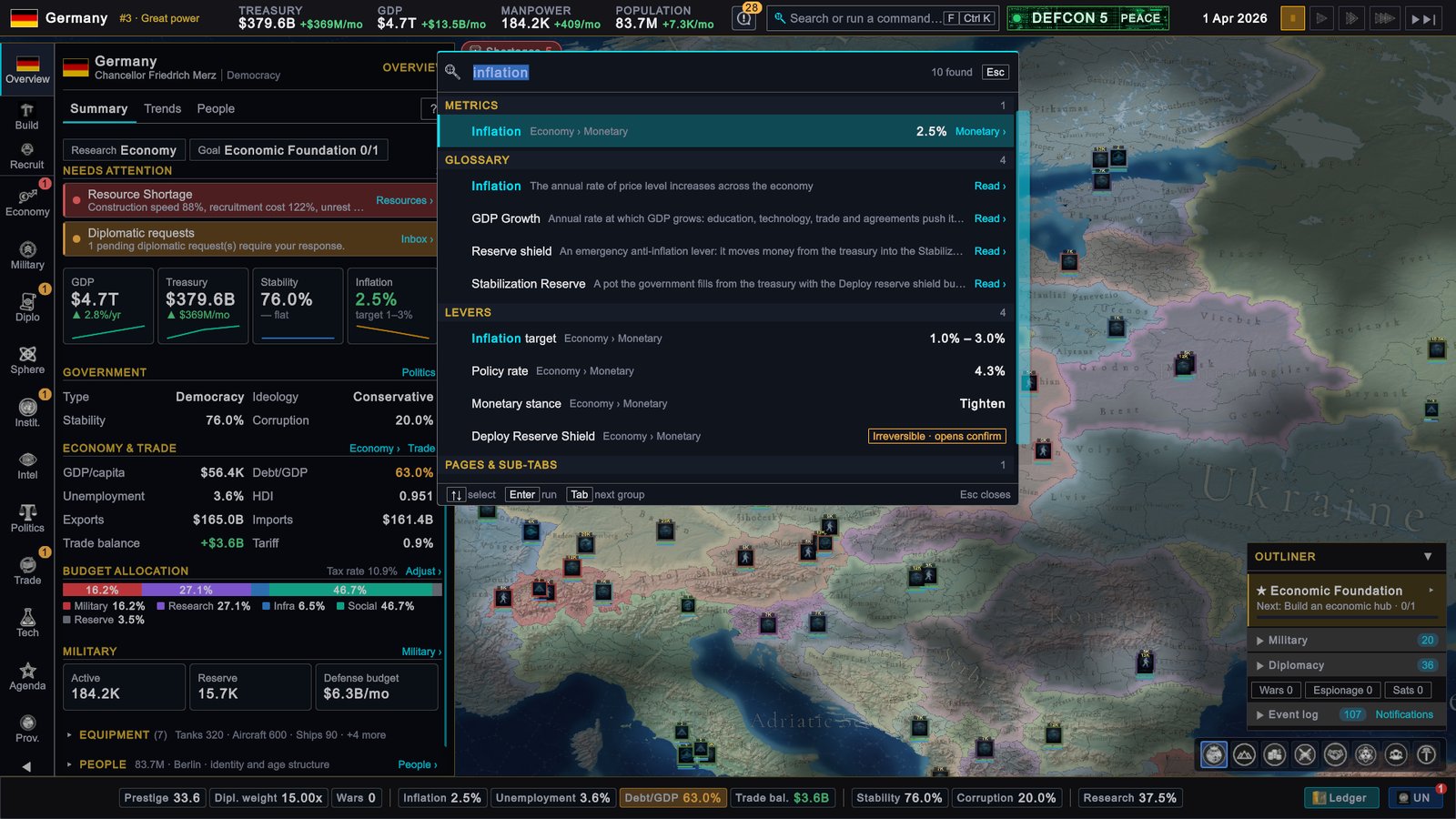
Type a few letters. The results come in groups: pages, numbers, things you can change, actions, countries and provinces, glossary entries and settings.
- ↑ and ↓ move through the list.
- Enter opens or runs the selected line.
- Tab jumps to the next group.
- Shift+Enter on a country opens its card.
- Esc closes the palette.
When you do not know where something is, type its name here. Typing “speed”, for example, lists Normal speed, Fast speed, Very fast speed and Maximum speed.
Playing with a gamepad
The game works with a gamepad. The names below are for an Xbox controller, which is the one the game is tested on.
| Control | What it does |
|---|---|
| Left stick | Move the map. |
| Right stick | Move the pointer. The game calls it the virtual cursor. |
| Triggers | Zoom. |
| A | Select (the left click). |
| Y | Give an order (the right click). |
| B | Back or close. |
| Menu button | Pause and unpause. |
| RB / LB | Faster / slower. |
| Hold LB and press the D-pad | Switch map mode. |
Two settings for the virtual cursor are in SETTINGS › CONTROLS, under CONTROLLER CURSOR: Enable Virtual Cursor and Virtual Cursor Speed (%).
Changing keys
-
Open the settings. Press Esc until the pause menu appears and click SETTINGS. From the main menu, click SETTINGS.
-
Open the controls tab. Click CONTROLS.
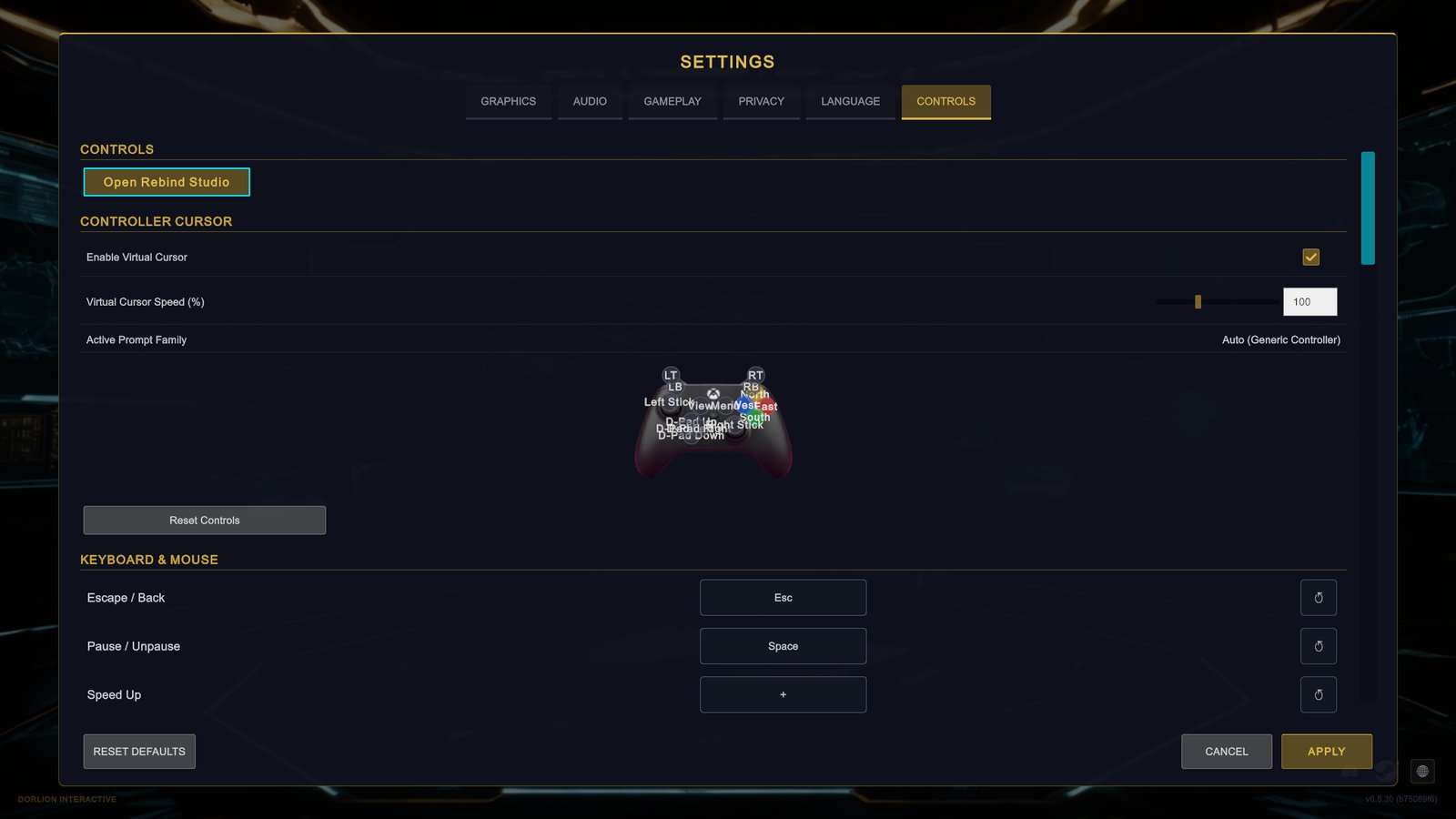
The Controls tab of the settings screen, opened from the main menu. -
Find the action. Scroll to KEYBOARD & MOUSE. Each line has the action on the left and its key on a button.
-
Click the key button. It shows Listening….
-
Press the new key. The button confirms that the key is saved, then shows the new key. The change is kept at once: it does not wait for APPLY, and CANCEL does not undo it.
If the key already belongs to another action, the button reports a conflict and nothing changes. The round arrow next to a key puts that one key back to its default. Reset Controls puts every key back.
Rebind Studio
Open Rebind Studio at the top of the tab opens a larger screen with a picture of a controller or a keyboard.
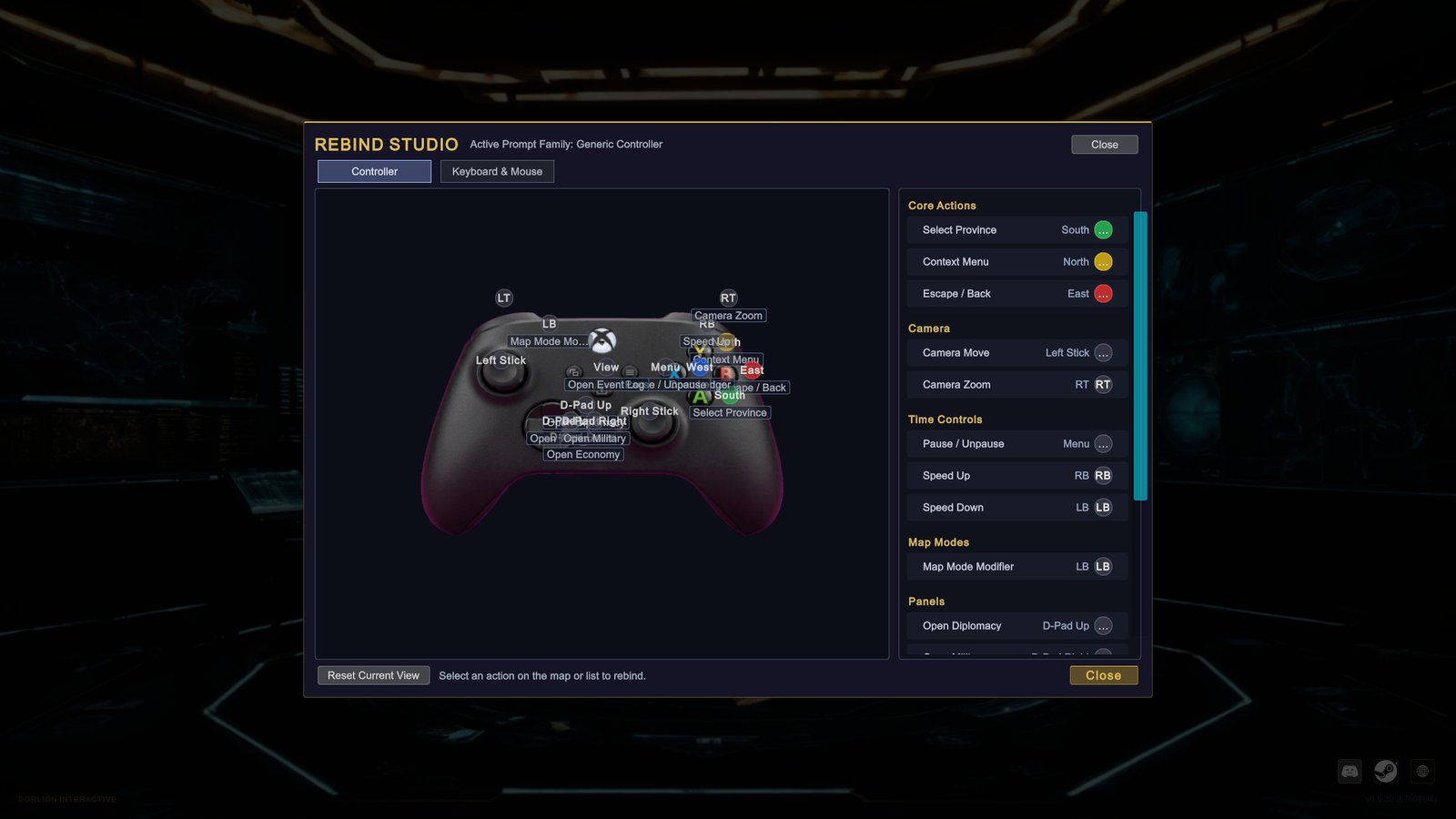
- Switch between Controller and Keyboard & Mouse at the top.
- Click an action in the picture or in the list, then press the new key or button.
- If the key is taken, you choose: Swap exchanges the two keys, Override takes the key and puts the other action back on its default key, Cancel changes nothing.
- Reset Current View restores the defaults for the view you are looking at.
Two shortcuts are fixed and cannot be changed: Ctrl+K for the command palette, and the number keys for control groups.
If your screen looks different
- A page key does nothing. Page keys are ignored while you type in a text box. They also need the pointer to be over a part of the interface, or a button of the interface to be selected. Move the pointer over the left panel and press the key again. Clicking the button on the rail always works.
- The speed keys do nothing. They are on the number pad, and they do not work while the game is paused. Use the buttons in the top bar or pick other keys.
- The map does not move at the screen edge. Disable Edge Panning is on in SETTINGS › GAMEPLAY. The same tab has Edge Pan Zone (%), which makes the strip at the edge wider or narrower.
- A key does something else. Someone changed it. SETTINGS › CONTROLS › Reset Controls restores the defaults.