You have picked Australia and pressed START GAME. This page covers what is on the screen in the first minutes, before you give a single order: the guided tour, the first page, your first goal and the clock. You do not need to decide anything yet. Read along with the game open.
The numbers on this page come from one played game as Australia. Yours will match on the first day and drift apart later.
The game opens paused
The date in the top right corner reads 1 Jan 2026. Next to it are five small buttons, and the first one, two vertical bars, is lit. That lit button means the game is paused.
While the game is paused, no day passes. You can open every page, read every number and give orders, and nothing happens until you start the clock. Take your time.
The guided tour
A box opens in the middle of the screen without asking. This is the guided tour: 23 short cards that point at the parts of the screen one after another.
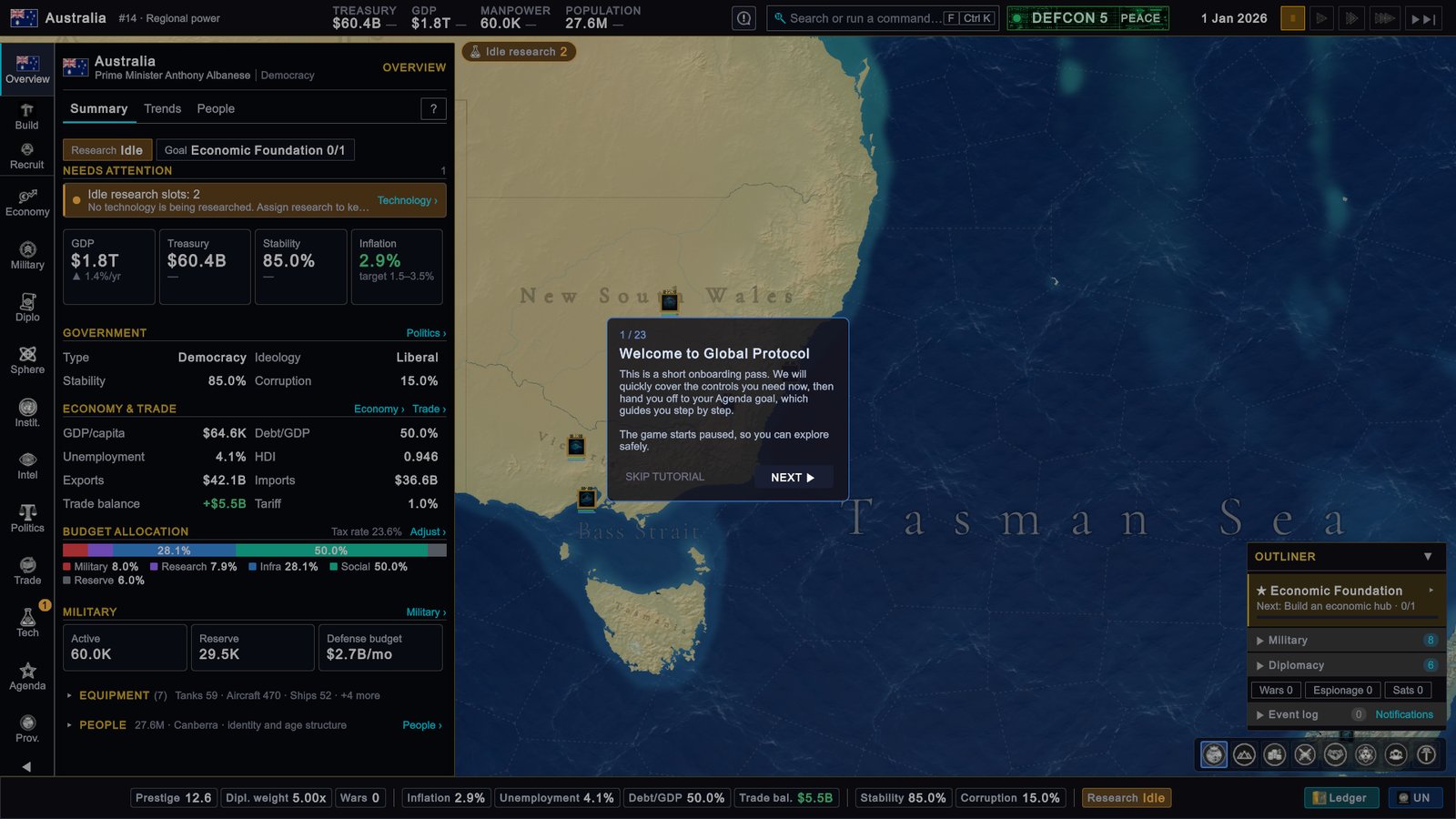
The first card is titled Welcome to Global Protocol. It says the tour covers the controls you need first and then hands you to your goal, and it ends with: “The game starts paused, so you can explore safely.”
-
Step through it. Click NEXT ▶. Each card names one part of the screen, such as the pages on the left edge, the alerts at the top of the map and the Build and Recruit buttons. You do not have to do what a card describes.
-
Or leave it. Click SKIP TUTORIAL on any card. The box closes and the game stays paused.
-
Bring it back later. Press Esc (by default) until a menu titled GAME PAUSED appears, then click RESTART TUTORIAL. The tour starts again.
Closing the pause menu starts the clock. With the default settings, the game runs when you close the GAME PAUSED menu, even if it was paused before. Press Space (by default) to pause again. Time, speed and saving shows the setting that changes this.
Stepping through the tour once is worth the time. This page and the next one cover the same ground more slowly.
What the first screen shows
When the tour box is gone, you see the whole screen. The dark panel on the left is the Overview page, a one-page summary of your country.
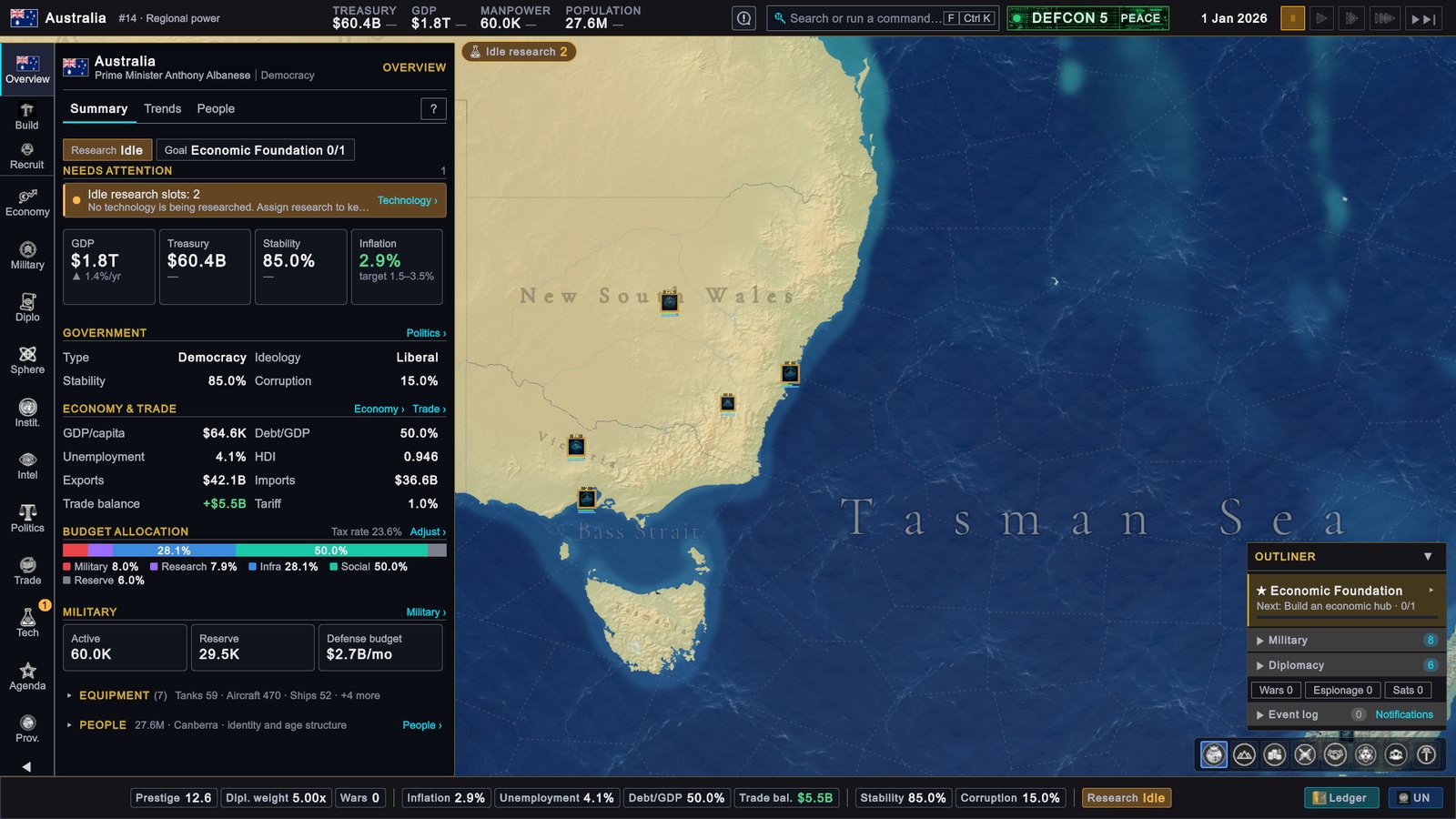
Read it from the top. In this game it showed:
| Part of the page | What it showed | What it means |
|---|---|---|
| Two small boxes under the tabs | Research Idle, and Goal Economic Foundation 0/1 | Nothing is being researched, and your first goal has 0 of 1 steps done. |
| Needs attention | ”Idle research slots: 2” | The list of things the game thinks you should look at. On day one there is one entry. |
| GDP tile | $1.8T, ▲ 1.4%/yr | GDP is the yearly value of everything your country produces. Your tax income grows with it. |
| Treasury tile | $60.4B | The treasury is the money the state holds. Everything you buy is paid from it. |
| Stability tile | 85.0% | Stability is how calm and orderly the country is, from 0 to 100%. |
| Inflation tile | 2.9%, target 1.5–3.5% | Inflation is how fast prices rise in a year. Inside the target band is good. |
Below the tiles are four sections: GOVERNMENT, ECONOMY & TRADE, BUDGET ALLOCATION and MILITARY, and two folded lines, EQUIPMENT and PEOPLE. Each section has a small link on the right, such as Economy ›, that opens the page with the details. You can ignore all of them for the moment. Hover any number for a short explanation.
A dash next to a number means “no monthly change yet”. The changes appear after the first month has ended.
The page has three tabs at the top: Summary, Trends and People. You are on Summary. The other two can wait.
Your first goal
A goal is a named objective with a list of steps that the game checks for you. One goal is tracked from the start, and it is the game’s answer to “what should I do first?”.
Look at the lower right corner of the screen. The panel titled OUTLINER is a running list of what your country is doing. Its top row reads ★ Economic Foundation, and under it: “Next: Build an economic hub · 0/1”.
-
Unfold the goal. Click the small arrow at the right end of the ★ Economic Foundation row. Two more rows appear.
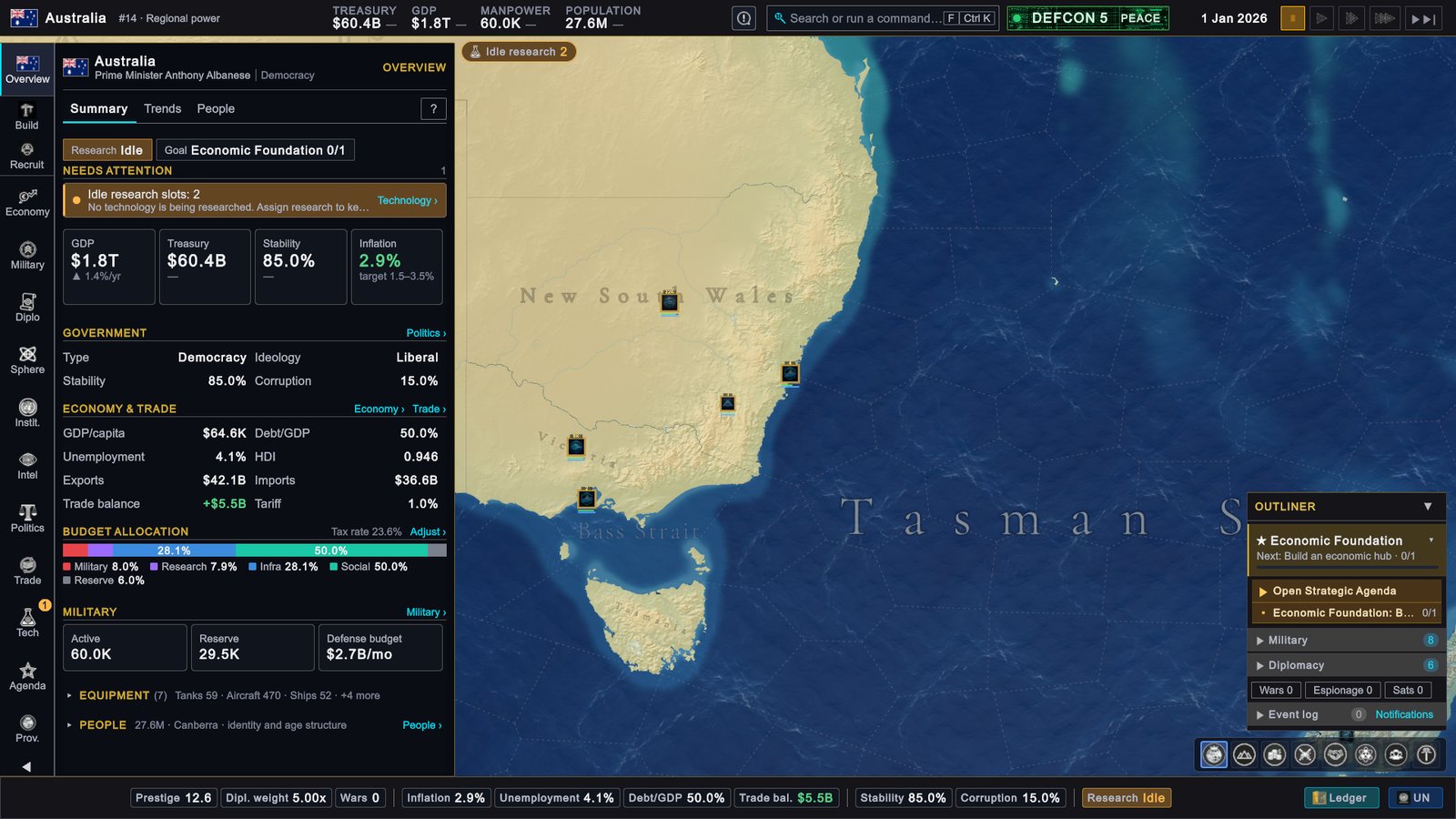
Australia, 1 January 2026: the tracked goal in the outliner, unfolded with the small arrow. -
Read the two rows. Open Strategic Agenda takes you to the page where goals live. The second row is the open step: “Economic Foundation: Build an economic hub”, with 0/1 beside it. On screen the row is cut short after the first letters.
-
Fold it again with the same arrow, or leave it open.
You do not have to build anything yet. Your first month queues the building that completes this step.
The Agenda: where goals live
Click Agenda on the rail, the column of buttons on the far left (Q by default). You can also click Open Strategic Agenda in the outliner.
The top of the page shows your ACTIVE GOAL. In this game:
- Two labels: Starter (the group of goals meant for the start of a game) and Economic (what the goal is about).
- The name, Economic Foundation, and a short description.
- Required steps · 1 left, with the step under it: Build an economic hub, 0/1, and the explanation “Complete 1 new commercial district, trade port, factory or tech park.” Those are four kinds of buildings.
- A link, Provinces ›, to the page where you act on the step.
Under Other goals the page lists the rest. Five more carry the Starter label: Diplomatic Standing, Intelligence Network, Military Readiness, Provincial Development and Technology Advancement. Each is a short checklist for one part of the game.
Two things to know before you move on:
- You track one goal at a time. The tracked goal is the one shown in the outliner. Every other goal still makes progress in the background.
- The game does not pick the next goal for you. When the tracked goal is complete, the outliner reads “No active goal · choose one” until you choose another on this page.
More in Agenda and national goals. Click Overview on the rail to go back.
Starting the clock
Do not start the clock yet. The next two pages have you look around and give your first orders while the game is still paused. This section is here so you know how, and so a stray key press does not surprise you.
The five buttons to the right of the date, from left to right (you can see them in the picture of the first day above):
| Button | Name | What it does |
|---|---|---|
| Two bars | Paused | Stops time. Lit while the game is paused. |
| One arrow | Normal | One day every 2 seconds. A month takes one minute. |
| Two arrows | Fast | Twice as fast as Normal. |
| Three arrows | Very Fast | Five times as fast as Normal. |
| Arrows and a bar | Skip to next month | Runs at top speed and pauses by itself on the 1st of the next month. |
- To unpause, click the one-arrow button, or press Space (by default). Space pauses again.
- To change speed, click another button. The keys for faster and slower are Numpad + and Numpad − (by default). They are on the number pad only, and they do nothing while the game is paused.
- Hold the pointer over a button to see its name.
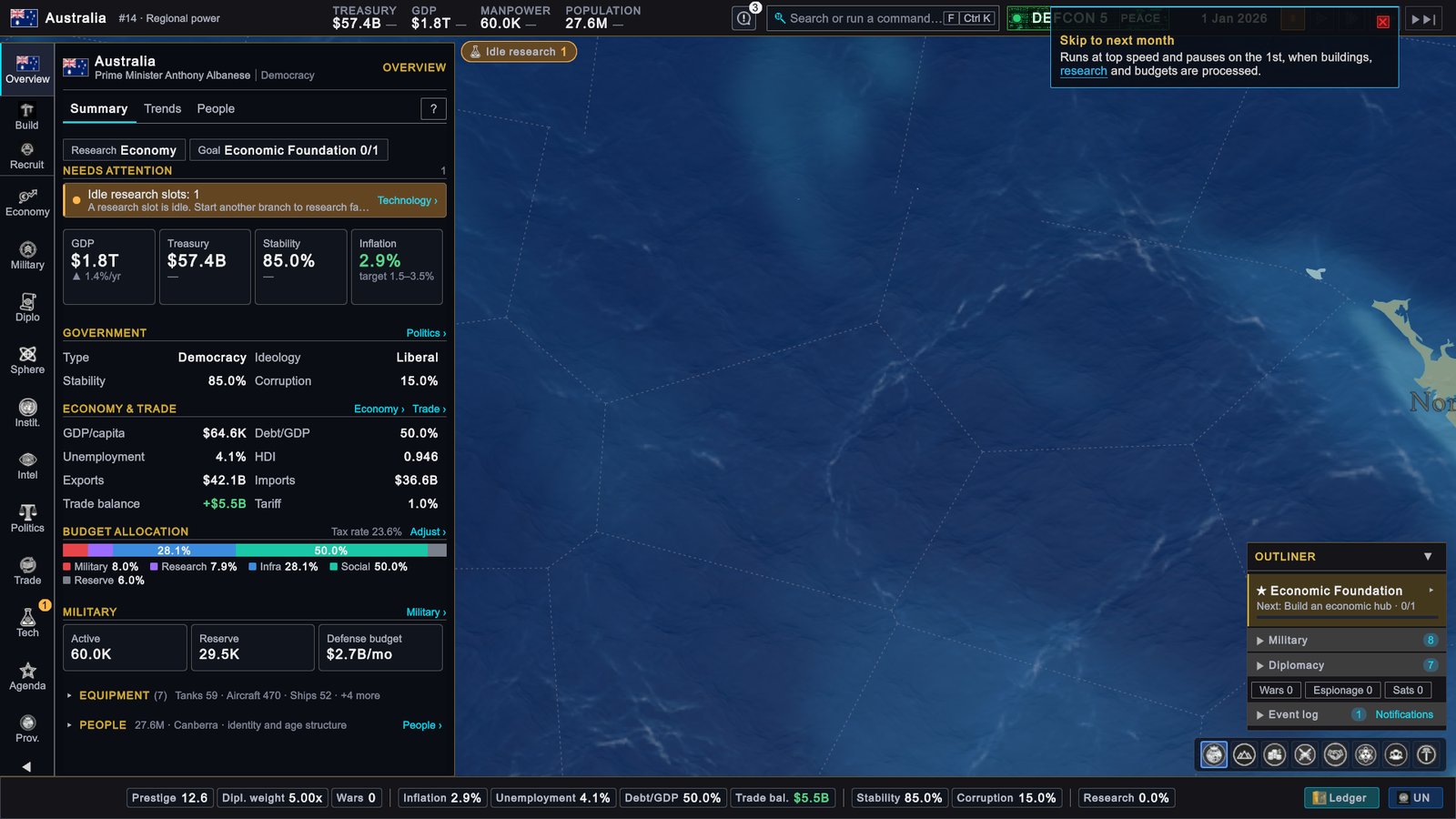
The last button is the one a beginner uses most. Its tooltip reads: “Runs at top speed and pauses on the 1st, when buildings, research and budgets are processed.” One click takes you to the next set of monthly results and stops there.
What pauses the game by itself
With the default settings, the game stops the clock in these cases:
- Something needs your answer. An event popup (a question the game puts to you), another country declaring war on you, a call to arms (an ally asking you to join its war), an ultimatum (a demand with a deadline) and the Year Review (the summary shown every 1 January).
- You open the pause menu with Esc.
- You switch to another window. The game stays paused until you unpause it.
- Skip to next month reaches the 1st.
While a popup that needs an answer is open, the speed buttons do not start the clock. Answer the popup first.
Toasts, the small messages that slide in on the right, do not pause the game. All of this can be changed: see Settings worth changing.
What to do next
- Stay paused.
- Read The screen, piece by piece with the game open. It names every part of the screen you saw here.
- Then play Your first month: a budget check, a building, a purchase, a diplomat, a ship and a first research, all on 1 January, followed by one click on Skip to next month.
If your screen looks different
- You play another country. The layout is the same. The numbers, the goals under Other goals and the alerts at the top of the map are your country’s own. Some countries have goals written for them as well as the six Starter goals.
- There is no tour box. It was closed with SKIP TUTORIAL or stepped through to the end. Bring it back with RESTART TUTORIAL in the pause menu.
- The date is not 1 Jan 2026, or the game is running. The clock was started, by Space or by closing the pause menu. Press Space (by default). Nothing is lost by a few days.
- Names or numbers differ on day one. A mod, a change to the game made by players, is switched on. Start your first game without mods.
Next
The screen, piece by piece: every part of the main screen and what you use it for.