Time is the one control you use all the time. This page shows where the clock is, how to stop and speed up the game, what stops it without asking, and how to save your game so you can come back to it.
The clock and the speed buttons
Look at the right end of the top bar. You see the date, then five small buttons.
From left to right:
| Button | Name | What it does |
|---|---|---|
| Two bars | Paused | Stops time. It stays lit while the game is paused. |
| One arrow | Normal | One day every 2 seconds. |
| Two arrows | Fast | Twice as fast as Normal. |
| Three arrows | Very Fast | Five times as fast as Normal. |
| Arrows and a bar | Skip to next month | Runs at top speed and pauses by itself on the 1st of the next month. |
Hold the pointer over a button to see its name.
There is a fifth speed, Max, ten times as fast as Normal. It has no button. You reach it with the speed-up key, or from the command palette, the game’s search box (see Controls and hotkeys).
A month has 30 days, so a month takes one minute at Normal, 30 seconds at Fast, 12 seconds at Very Fast and 6 seconds at Max.
The keys
| Key (by default) | What it does |
|---|---|
| Space | Pause. Press again to go back to the speed you had. |
| Numpad + | One step faster: Normal, Fast, Very Fast, Max. |
| Numpad − | One step slower, down to Normal. It does not pause. |
The two speed keys do nothing while the game is paused. Unpause first.
No number pad? Many laptops have none. Use the buttons in the top bar, or give Speed Up and Speed Down other keys. Controls and hotkeys shows how.
How long a day lasts
At Normal speed one game day takes 2 seconds. You can change that.
-
Open the pause menu. Press Esc (by default) until you see GAME PAUSED.
-
Open the settings. Click SETTINGS.
-
Open the gameplay tab. Click GAMEPLAY.
-
Pick a day length. Next to In-game Day Duration, choose a value from 1.0s to 5.0s.
-
Confirm. Click APPLY.
A longer day gives you more time to read while the clock runs. The other speeds scale with it: Fast stays twice as fast as Normal.
When the game pauses by itself
The game starts paused. After that it pauses in these cases:
- You open the pause menu with Esc.
- Something needs your answer. An event popup (a question the game puts to you), another country declaring war on you, a call to arms (an ally asking you to join its war), an ultimatum (a demand with a deadline) and the Year Review (the summary shown each new year) all pause the game.
- You switch to another window. The game pauses when its window is no longer the active one, for example when the Steam overlay opens. It stays paused until you unpause it.
- Skip to next month reaches the 1st.
While a popup that needs an answer is open, the speed buttons will not start the clock. Answer the popup first.
Four switches in SETTINGS › GAMEPLAY, under GENERAL, control this. All four are on by default.
| Setting | On | Off |
|---|---|---|
| Pause on Event Popup | Event popups, war declarations, calls to arms, ultimatums and the Year Review pause the game. | They open while the clock keeps running. |
| Auto-unpause (Events) | After you answer, the game goes back to the speed it had. If you had paused it yourself, it stays paused. | The game stays paused after you answer. |
| Auto-unpause (Escape Menu) | Closing the pause menu starts the clock again. | The game stays paused when you close the menu. |
| Pause When Unfocused | Switching to another window pauses the game. | The game keeps running in the background. |
Closing the pause menu starts the clock. With Auto-unpause (Escape Menu) on, the game runs again when you close the menu, even if it was paused before you opened it. Press Space again if you wanted it paused, or turn that setting off.
With Pause on Event Popup on, every event in the base game pauses the clock, and the event waits for you. With it off, events open while time runs. A line on the popup then counts down the days, and after 30 days the game chooses the first available option for you.
Autosave
The game saves by itself while you play. You see AUTOSAVING… for a moment, and the game does not stop.
- The save is called Autosave. There is only one. Each autosave replaces the one before it.
- By default it happens every 5 minutes of real time, not game time.
- To change it, open SETTINGS › GAMEPLAY and set Autosave Interval to Off, 2 min, 5 min or 10 min.
Because there is only one autosave, save by hand under your own name before a big decision such as a war.
Saving by hand
-
Open the pause menu. Press Esc until you see GAME PAUSED.
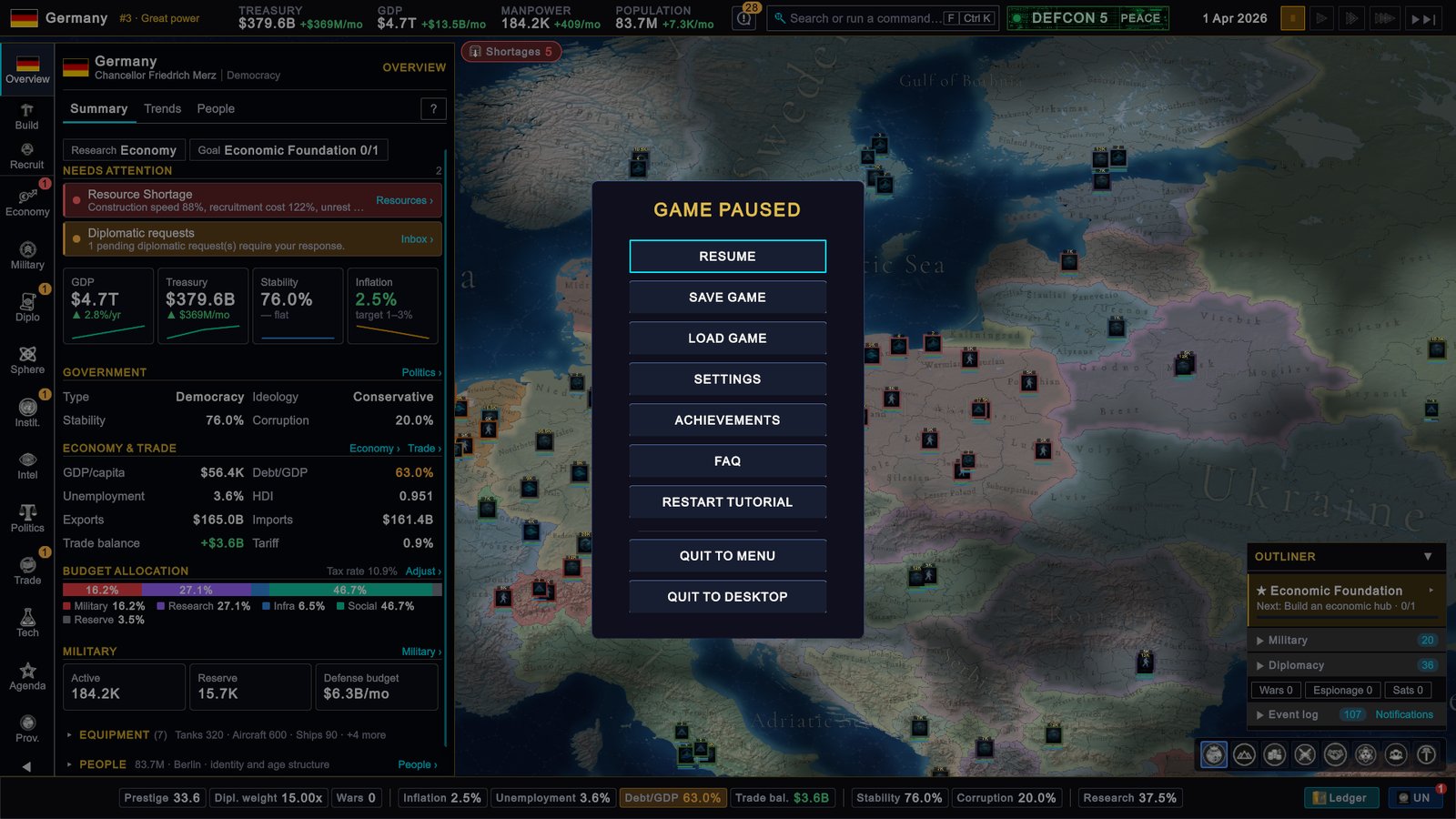
Germany, 1 April 2026: the pause menu. -
Open the save screen. Click SAVE GAME.
-
Name the save. Type a name in the box that says Save name….
-
Save. Click SAVE. The message Game saved successfully appears.
-
Go back. Click ◀ BACK, then RESUME.
If a save with that name exists, the game asks whether to overwrite it. The game sets no limit on how many saves you keep and does not delete them for you.
Loading
- From the main menu. CONTINUE loads your most recent save. LOAD GAME shows the full list.
- During a game. Open the pause menu and click LOAD GAME.
In the list, click a save to see what is in it: the country, the game date, the speed it was saved at, the mods it used, its size and when it was saved. Then click LOAD.
To remove a save, select it and click DELETE. The game asks you to confirm.
Steam Cloud
Steam can copy your saves to your Steam account, so you can continue on another computer.
- The switch is Steam Cloud Saves, at the bottom of SETTINGS › GAMEPLAY. It is on by default. You only see it while Steam is running.
- In the save list, a cloud symbol next to a save means it is in the cloud. An empty circle means it is only on this computer.
- The details of a selected save say Cloud synced or Not in cloud.
Old saves after an update
Saves from an older version of the game still load. The game converts them when it loads them.
For some older saves the game first shows a SAVE MIGRATION message. It lists what works differently in the current version and recommends starting a new game. You choose MIGRATE AND LOAD or CANCEL.
A save is marked INVALID and cannot be loaded when it comes from a newer version of the game than the one you are running, when it is too old to convert, or when the file is damaged.
Saves and mods
A mod is a change to the game made by players. A save remembers which mods were enabled, including a mod that brought its own scenario, a different starting world. It loads only with the same mods enabled. Otherwise the save is marked INVALID with the message This save requires the same enabled mods as when it was created. On the main menu, CONTINUE is greyed out for the same reason.
Enable the same mods again and the save works. See Mods and scenarios.
If your screen looks different
- You are in a multiplayer game. Only the host, the player who set the game up, controls pause and speed. The menu is called GAME MENU, it does not pause the game, and it has no LOAD GAME button. A multiplayer save is continued from a multiplayer lobby. See Multiplayer.
- The number keys do not change the speed. The number keys select control groups, saved selections of units. The speed keys are Numpad + and Numpad −.
- A key does something else. Keys can be changed. Check SETTINGS › CONTROLS.
- There is no Steam Cloud switch. Steam is not running.
- The pause menu has a Mod Builder button. A local mod is enabled in this game.