The default settings are fine for a first game. A few of them are worth two minutes, because they decide how readable the screen is and how often the game interrupts you. This page lists those first, then says what else each tab holds.
Opening the settings
-
Open the pause menu. During a game, press Esc (by default) until you see GAME PAUSED. On the main menu, skip this step.
-
Click SETTINGS. The settings screen opens on the GRAPHICS tab.
-
Pick a tab. The tabs along the top are GRAPHICS, AUDIO, GAMEPLAY, PRIVACY, LANGUAGE and CONTROLS.
-
Change what you want. Hold the pointer over a line to read what it does.
-
Click APPLY. Your changes take effect and the screen closes.
CANCEL closes the screen without keeping your changes. RESET DEFAULTS puts the standard values back on every tab; click APPLY afterwards to keep them.
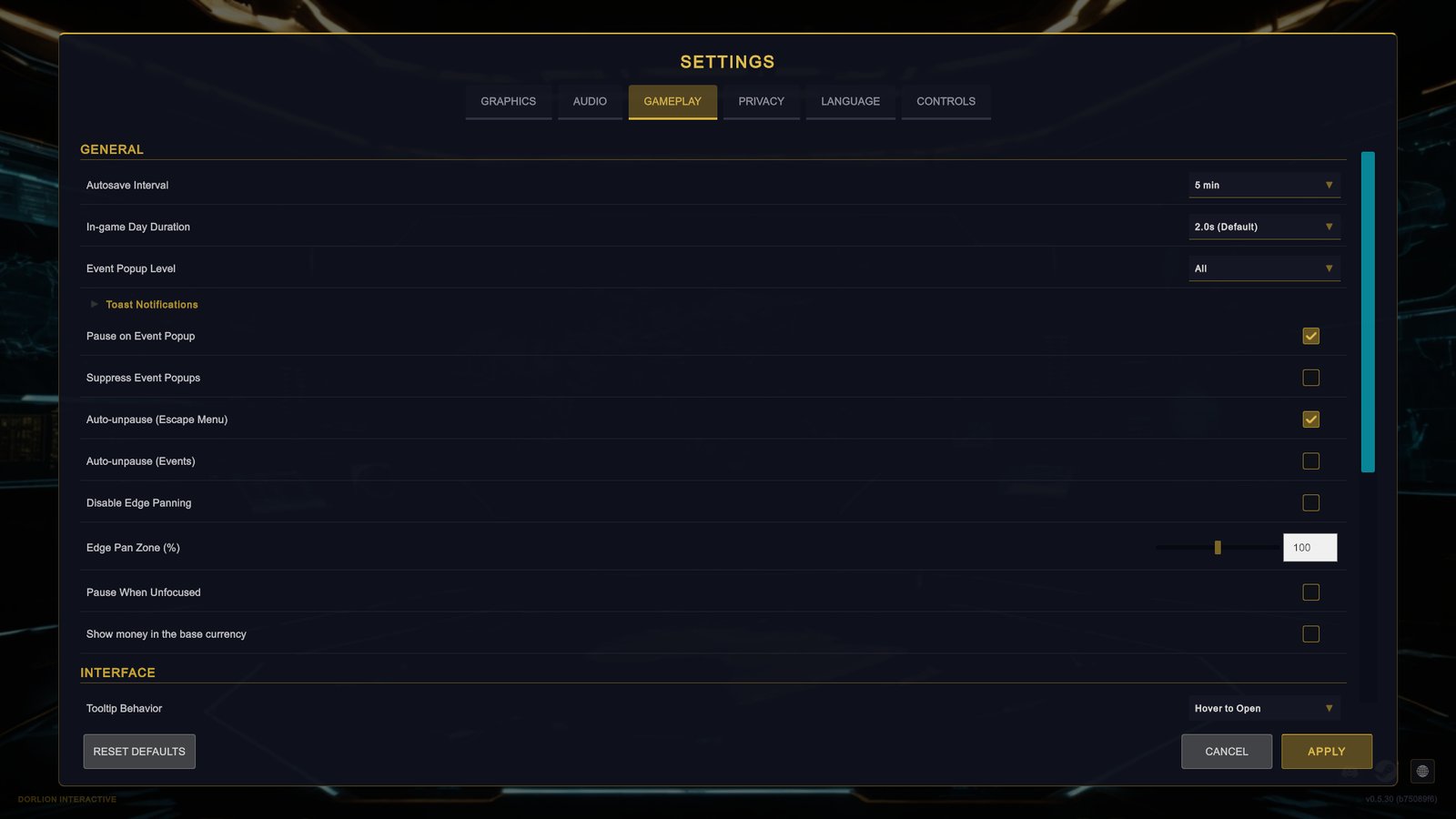
The settings to look at first
Text size
Where: GAMEPLAY, section FONT SCALE, near the bottom of the tab.
Four sliders make the text larger or smaller, each for one part of the screen. They go from 50% to 150%.
| Slider | Part of the screen |
|---|---|
| Main HUD Font (%) | The top bar, the alerts under it and the bar along the bottom. |
| Outliner Font (%) | The outliner, the list panel on the right. |
| Left Panel Font (%) | The pages on the left side. |
| Other UI Font (%) | Everything else: tooltips, popups, toasts and the panel that opens on the right when you click the map. |
If you sit far from the screen or play on a small one, raise Left Panel Font (%) first. That is where you read the most.
Cursor Size (%), in the section INTERFACE above, makes the mouse pointer larger or smaller.
Pausing when something happens
Where: GAMEPLAY, section GENERAL.
- Pause on Event Popup pauses the game when an event popup opens. It does the same for a declaration of war on you, a call to arms from an ally, an ultimatum and the Year Review. Leave it on. It gives you time to read.
- Auto-unpause (Events) starts the clock again after you answer, unless you had paused the game yourself. Turn it off if you want the game to stay paused until you press Space (by default).
- Auto-unpause (Escape Menu) starts the clock again when you close the pause menu, even if the game was paused before you opened it. Turn it off if you want the game to stay paused until you unpause it yourself.
Time, speed and saving explains each of them.
Which events interrupt you
Where: GAMEPLAY, section GENERAL, Event Popup Level.
An event is a popup that describes something that happened and asks you to choose an answer. This setting decides which events open a popup at all.
| Value | What opens a popup |
|---|---|
| All | Every event. |
| Important Only | Every event except social and cultural events and technology breakthroughs. |
| Critical Only | Only geopolitical crises, military incidents, natural disasters and events in your internal politics. |
An event that is filtered out does not wait for you. The game answers it with its first option and writes it to the event log. Keep All in your first game, so that every choice stays yours.
Leave Suppress Event Popups off. It hides every event popup and answers each one with the first valid option. It exists for recording videos.
How many notifications you get
Where: GAMEPLAY, section GENERAL, Toast Notifications. Click the line to unfold it.
A toast is a small message that appears on the screen for a few seconds. You choose how many you get, per subject:
- The subjects are Diplomacy, Military, Economy & Research, Internal Politics, Intelligence & Espionage and Multiplayer.
- All shows every toast. Important Only shows warnings and errors. Off shows none.
Messages you turn off still go to the event log. Messages about your own orders appear whatever you choose here.
If the screen feels noisy once the world gets busy, set Diplomacy to Important Only. That subject includes the wars and treaties of countries far from you.
Autosave interval
Where: GAMEPLAY, section GENERAL, Autosave Interval.
The game saves by itself every 5 minutes of real time by default. You can choose Off, 2 min, 5 min or 10 min. There is only one autosave, and each one replaces the last. Keep it on.
Tooltips
Where: GAMEPLAY, section INTERFACE.
A tooltip is the small box of explanation that appears when you hold the pointer over a number or a button. The game explains itself through tooltips, so these three settings matter:
- Tooltip Behavior: Hover to Open (the default), Click to Open or Disabled. Do not disable tooltips in your first game. Tooltips for units, provinces and satellites on the map open on hover whatever you choose here.
- Tooltip Delay (ms): how long the pointer must rest before a tooltip opens. The default is 250, a quarter of a second. The slider goes from 0 to 1000.
- Tooltip Lock Dwell (ms): how long the pointer must rest on an open tooltip before it locks in place. A locked tooltip stays open, so you can move into it and open the explanations inside it. The default is 1200. Set it to 0 to switch locking off.
Day length
Where: GAMEPLAY, section GENERAL, In-game Day Duration.
This is how long one game day takes at Normal speed. The default is 2.0s, and the choices run from 1.0s to 5.0s. Pick 3.0s or more if Normal speed feels too fast to follow.
Language
Where: LANGUAGE, Language.
On its first start the game picks the language of your computer when it has it, and English otherwise. To change it, choose a language and click APPLY. The game asks you to confirm, because it has to reload.
If you change the language during a game, the game saves first, under a name of its own written in the language you switched to (in English it is Autosave Language Switch). The reload takes you to the main menu. Load that save there to carry on. It is simpler to choose the language from the main menu before you start.
If the game runs slowly
Where: GRAPHICS.
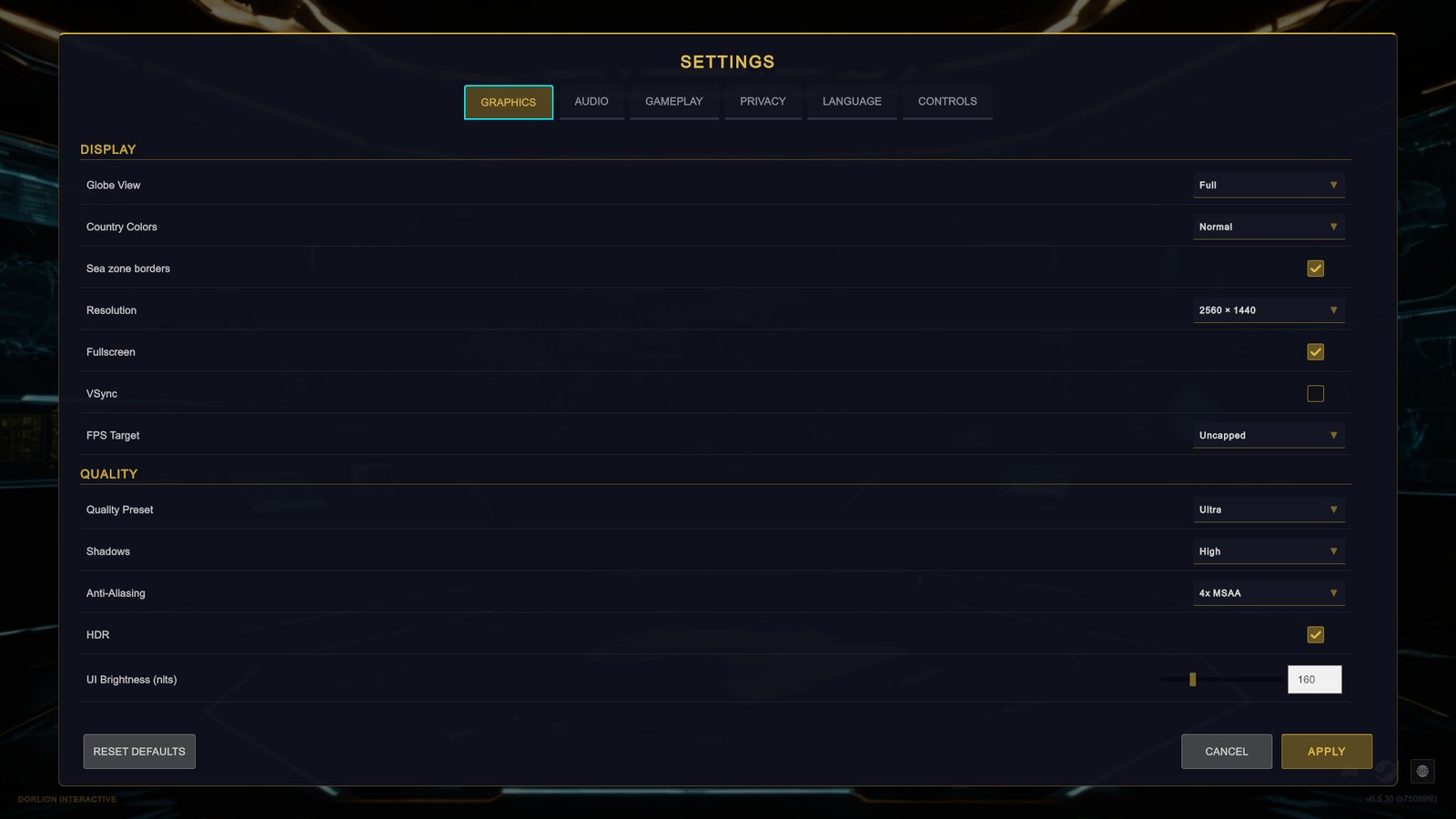
Try these in order, one at a time:
- Quality Preset, in the section QUALITY. It changes several quality settings at once. The values are Low, Medium, High and Ultra. Go one step down. The game chose a preset for your computer the first time it started.
- Shadows: Off, Low or High.
- Anti-Aliasing: this smooths jagged edges. Lower it or set it to Off.
- Globe View, in the section DISPLAY: Lite is lighter than Full. Off keeps the map flat when you zoom out.
- Resolution: a lower resolution is faster and less sharp.
FPS Target limits how many pictures per second the game draws. A lower limit keeps a laptop cooler and quieter. You can only change it while VSync, which ties the picture rate to your monitor, is off.
What else is in each tab
GRAPHICS. The section DISPLAY has Globe View, Country Colors (the map palette), Sea zone borders, Resolution, Fullscreen, VSync and FPS Target. The section QUALITY has Quality Preset, Shadows, Anti-Aliasing and HDR. On an HDR display there is also UI Brightness (nits).
AUDIO. Master Volume, Music Volume and SFX Volume (sound effects), and a switch for Notification Sounds. You hear volume changes at once, before you click APPLY.
GAMEPLAY. Besides the settings above: Disable Edge Panning and Edge Pan Zone (%) for moving the map with the pointer at the screen edge, Pause When Unfocused, Show money in the base currency (it only does something with a mod that gives countries their own currencies), and Steam Cloud Saves at the very bottom.
PRIVACY. Turns gameplay analytics on or off and links to the privacy policy.
LANGUAGE. The language of the game.
CONTROLS. Open Rebind Studio, the settings for the gamepad pointer, and the full list of keys and gamepad buttons with a button to change each. See Controls and hotkeys.
If your screen looks different
- There is no Steam Cloud Saves line. It only appears while Steam is running.
- HDR is greyed out. The game did not find an HDR display. HDR has to be on in the display settings of Windows first.
- FPS Target is greyed out. VSync is on. Turn it off to set a limit yourself.
- The day length does not change in multiplayer. The host’s setting counts for everyone.