The map can show more than borders. A map mode repaints the same map to answer one question: who owns this, how rich is it, who likes me. This page goes through every mode, the key that explains its colours, and what the game hides from you.
What a map mode is
A map mode changes the colours of the map and nothing else. Switching modes does not cost anything, does not pause the game and does not change your country. Switch as often as you like.
The map is divided into provinces, the small areas inside each country. Most modes colour the map province by province.
How to switch
Look at the bottom right corner of the screen. The row of eight round buttons is the map mode bar.
- Click a button to switch to that mode. The active one is lit.
- Hold the pointer over a button to see its name, what it shows and its key.
- Use the keys F1 to F7 (by default) for the first seven modes.
You start in Political mode. Press F1 to come back to it at any time.
The eight modes
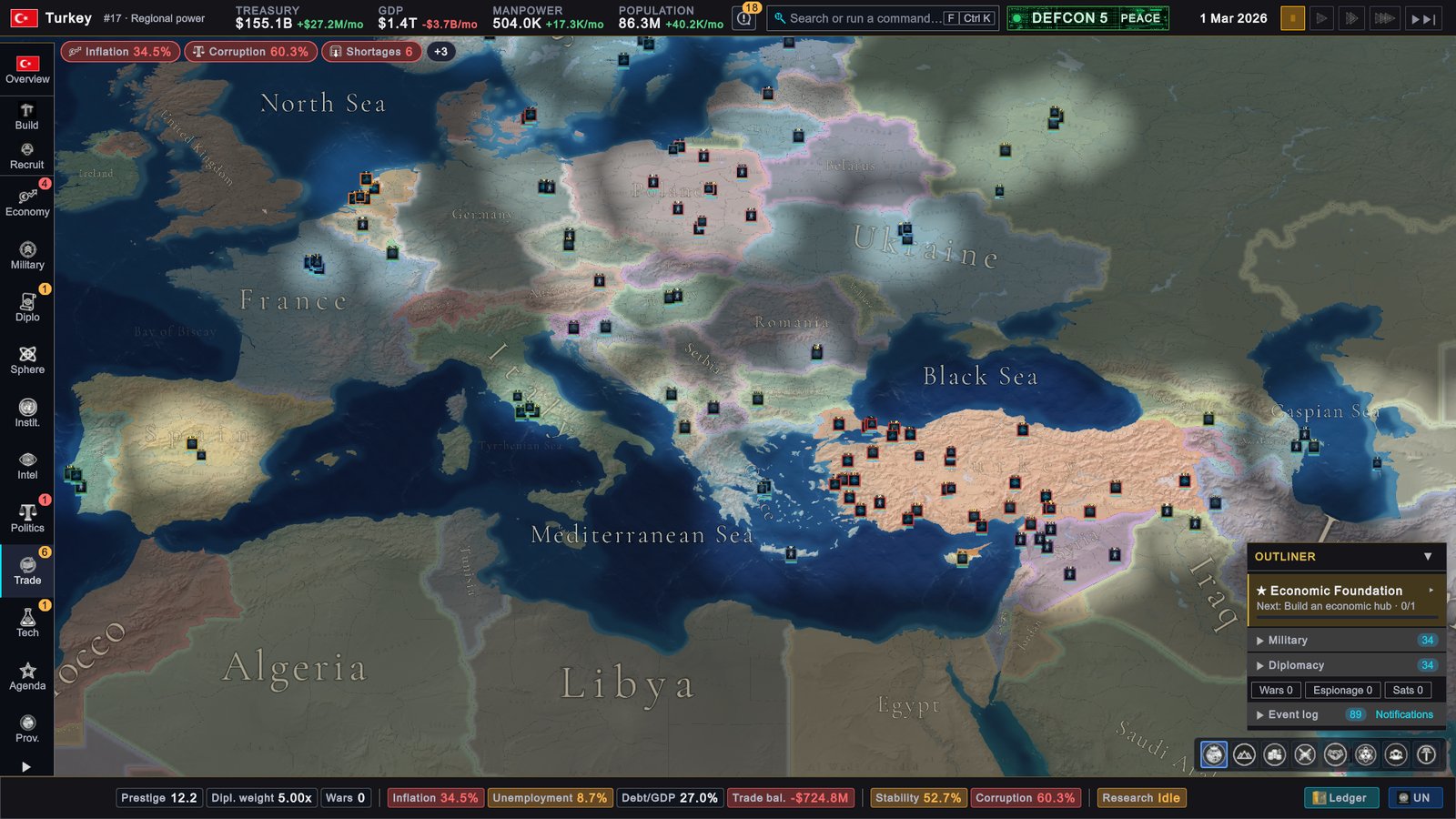
Political (F1)
Every country has its own colour. This is the mode you play in most of the time. Use it to see who owns what and where the borders are.
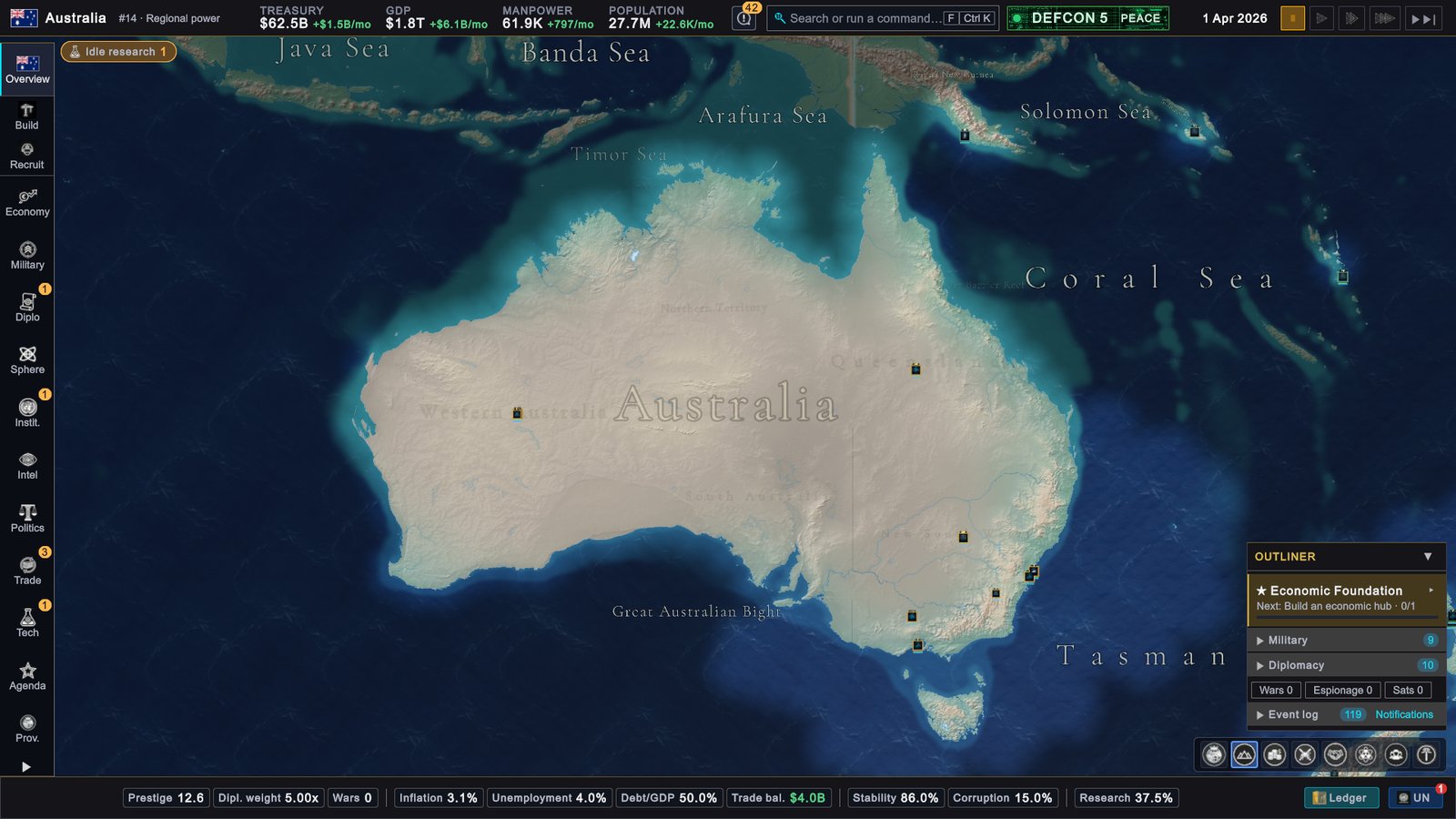
Terrain (F2)
The natural map: mountains, forests, deserts and plains. Use it before you move armies, because the ground changes how battles go. See Land forces.
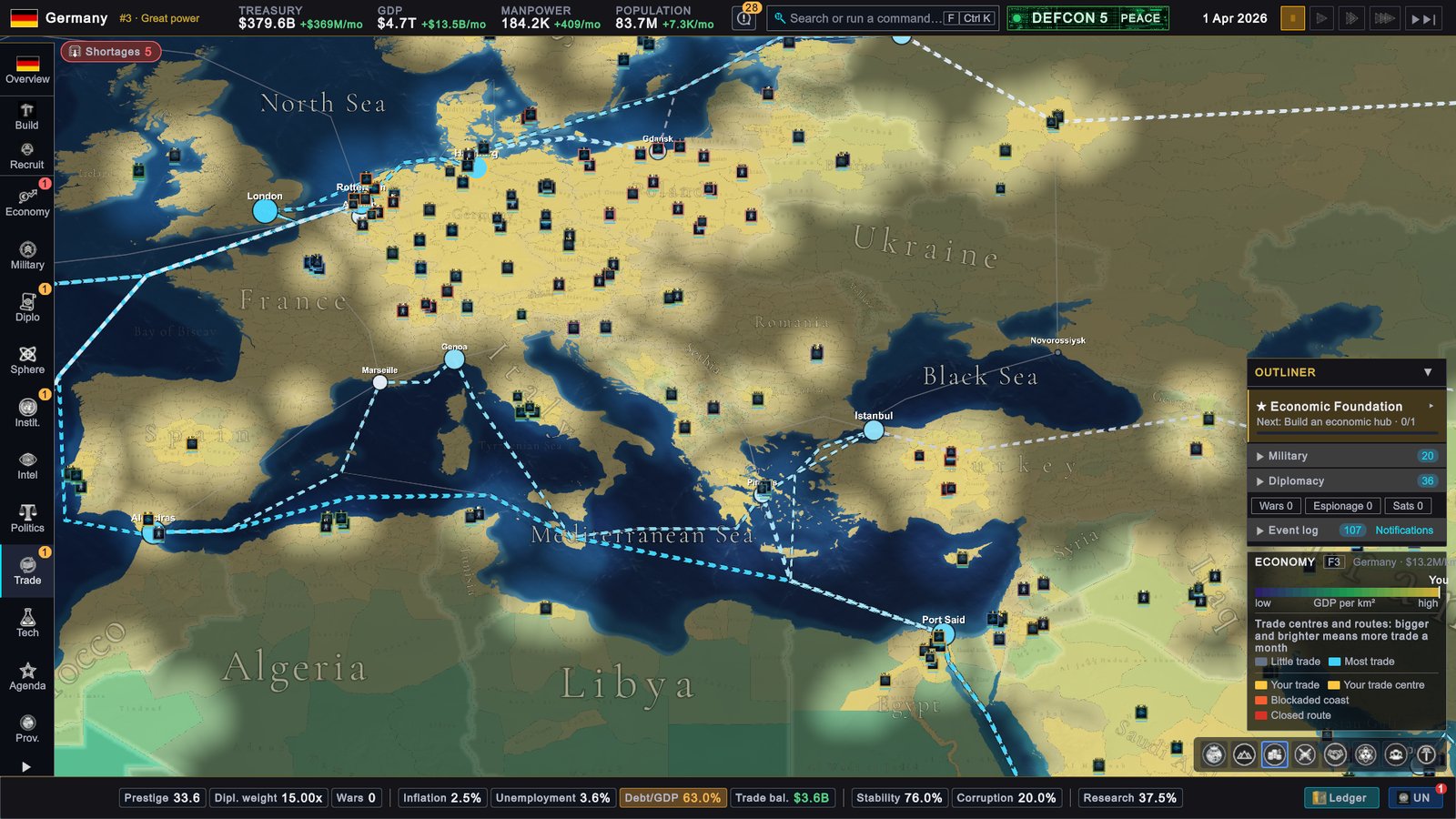
Economy (F3)
Shows how much each province produces for its size. Dark provinces are poor, gold provinces are the richest. Use it to find the provinces that carry your economy.
This mode also draws the trade network on top: trade centres and the routes between them. Bigger and brighter means more trade. Your own trade is drawn in gold. The map switches to this mode by itself while the Trade page is open, and switches back when you leave it.
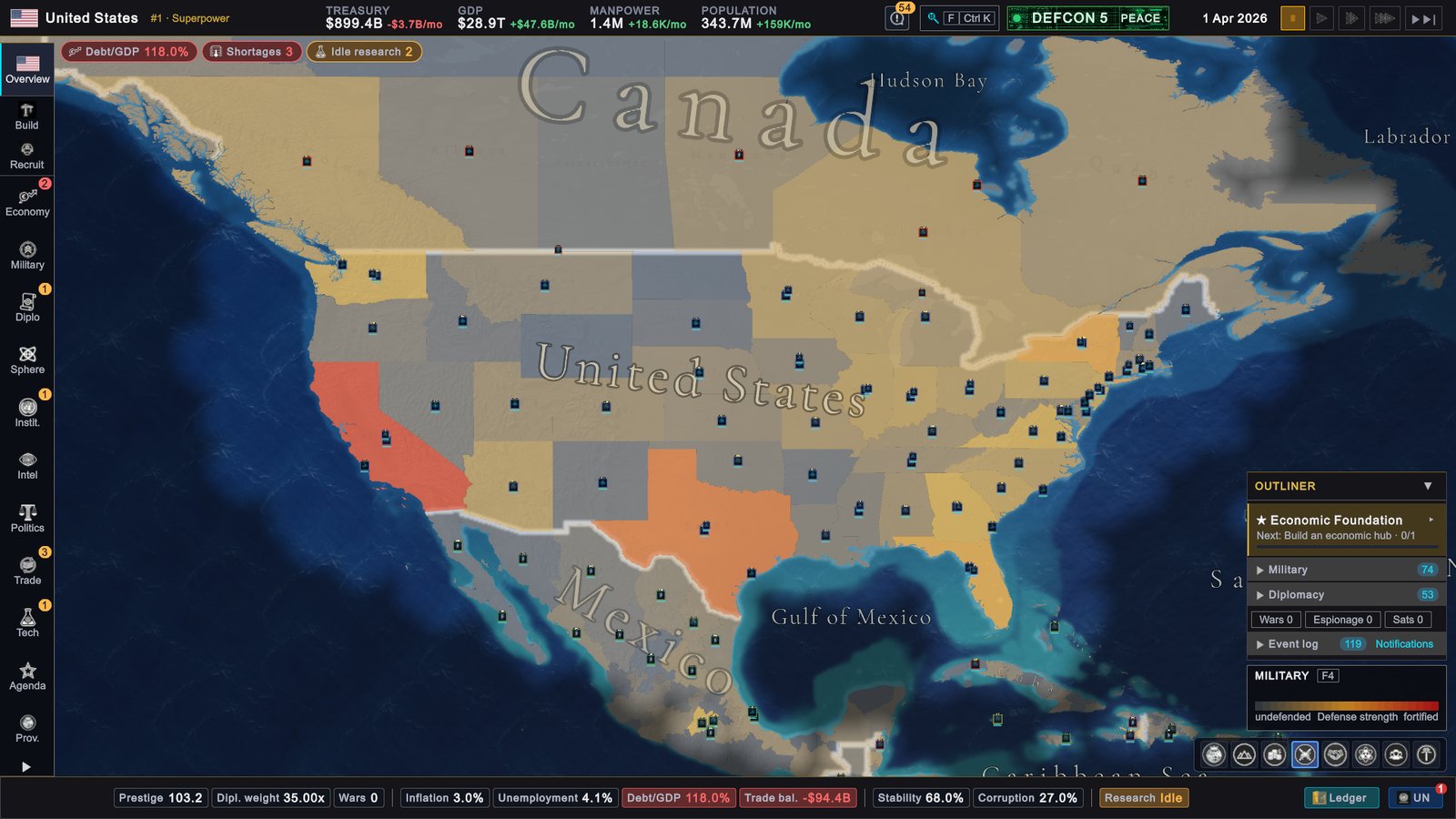
Military (F4)
Shows how well each province is defended. Dark means undefended, red means heavily fortified. Use it to find the weak spots along your border.
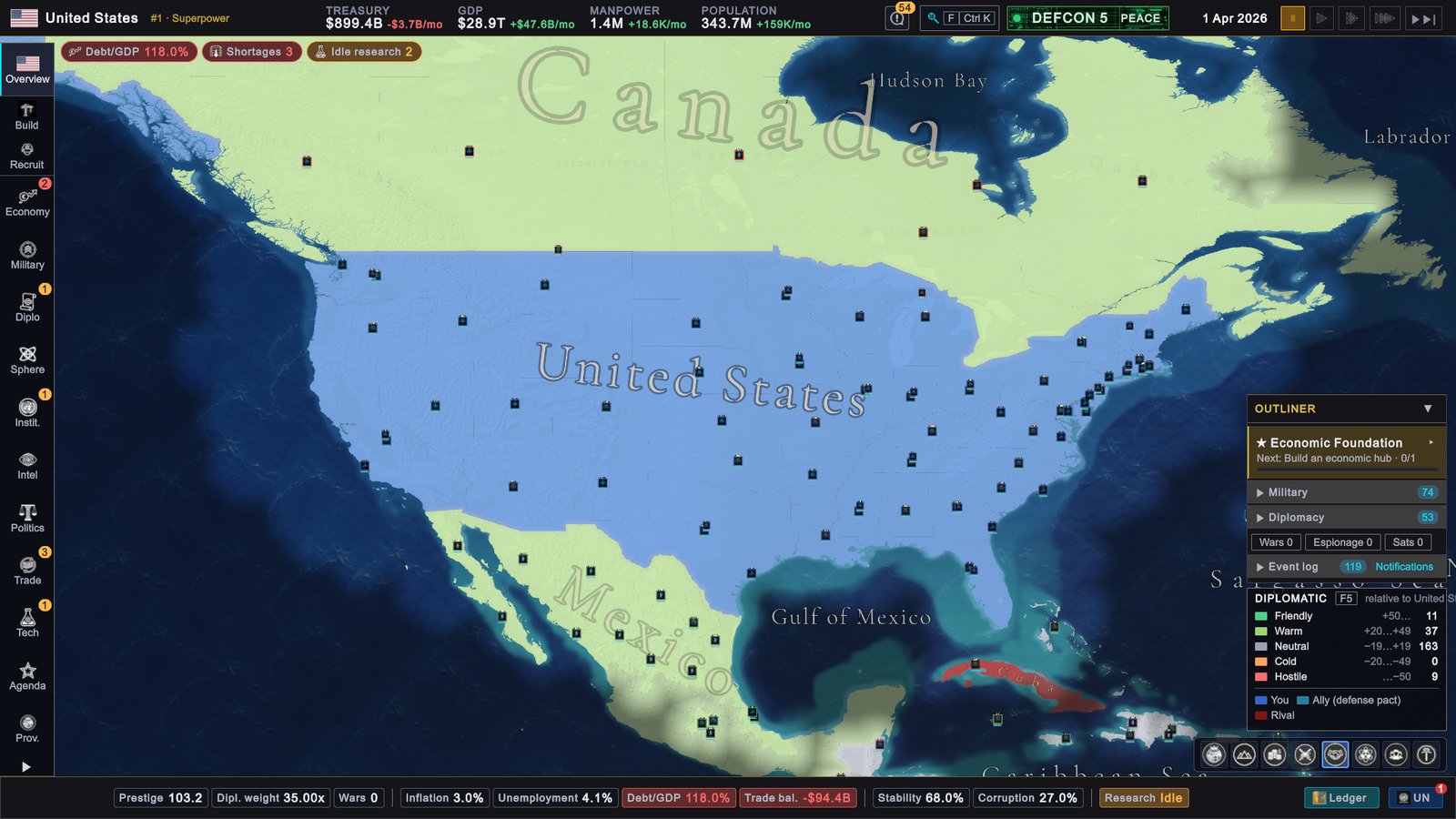
Diplomatic (F5)
Colours every country by its relations with you. Relations is a number from -100 to +100 that says how warmly another country regards yours. The mode sorts countries into five bands:
| Band | Relations |
|---|---|
| Friendly | +50 and above |
| Warm | +20 to +49 |
| Neutral | -19 to +19 |
| Cold | -20 to -49 |
| Hostile | -50 and below |
Your own country, your allies and your rivals each get a colour of their own. Use this mode before you ask another country for anything.
Nuclear (F6)
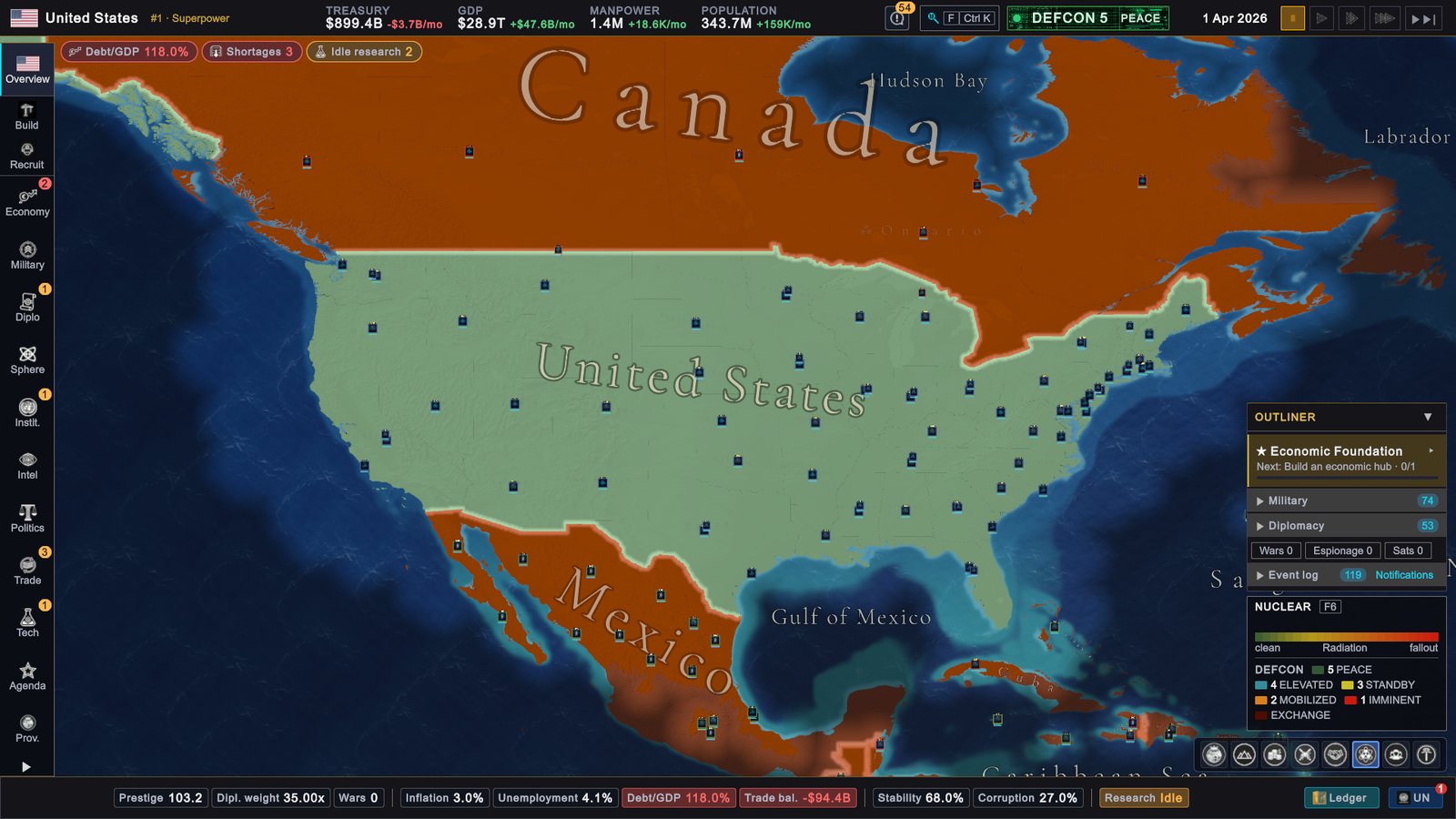
Colours every country by its DEFCON level. DEFCON is the alert level for nuclear war: 5 is peace, and a lower number is closer to a nuclear exchange. Provinces with radiation from a nuclear strike are painted on a second scale, from clean to fallout. You can leave this mode alone in a first game.
Population (F7)
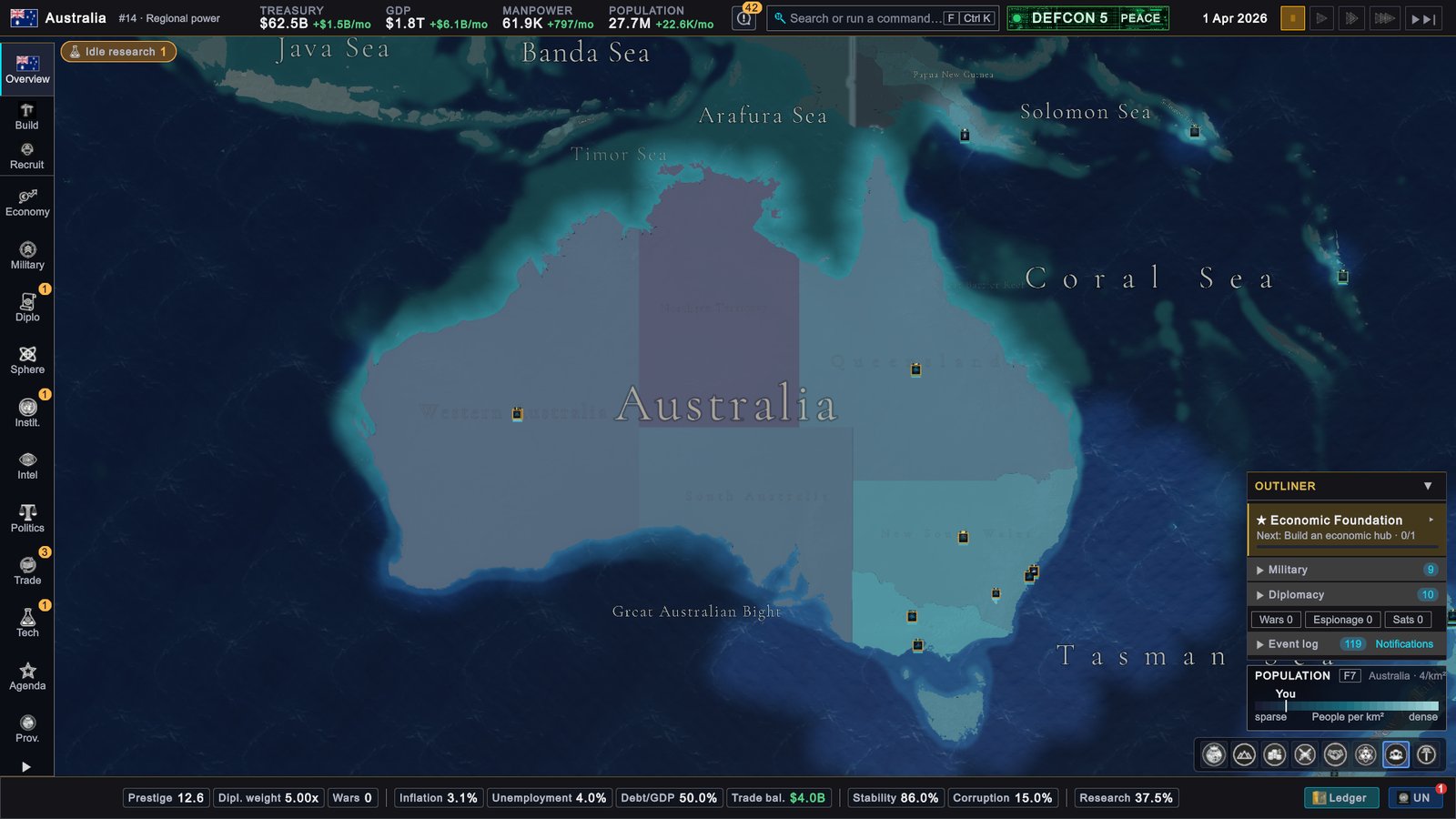
Shows how many people live in each province for its size. Dark means few people, bright means crowded. Use it to see where your people live.
Resources (no key)
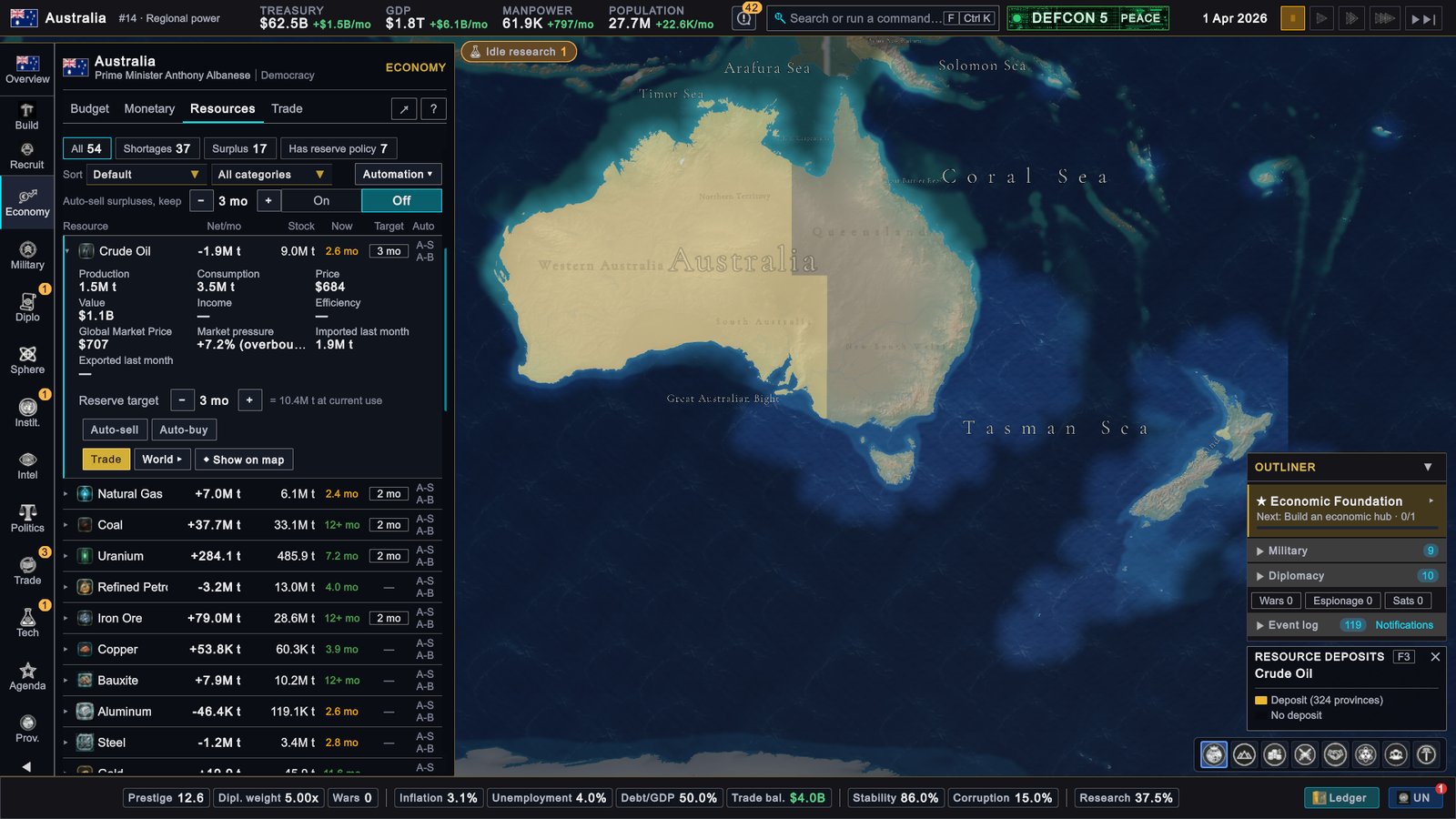
Shows where one resource lies in the ground. A deposit is a supply of a resource in a province. Brighter means a richer deposit, dark grey means none. Pick the resource with the two arrows in the legend.
Use it when you plan what to build: a building that extracts a resource needs a deposit of it in the province.
The legend
The legend is the small box above the map mode bar. It tells you what the colours mean in the current mode.
- In Economy, Military, Population and Resources it shows the colour scale and what each end means. Economy and Population also mark where your country sits on the scale.
- In Diplomatic it lists the five bands and how many countries are in each.
- In Nuclear it shows the DEFCON colours and the radiation scale.
- Political and Terrain have no legend.
Click the title of the legend to fold it away.
Extra overlays
Some pages can paint the map for a moment to show you one thing. The legend then shows what is highlighted, with a ✕ to end it. Esc ends it too.
- Resource deposits. Open Economy › Resources, click a resource to open it, then click Show on map. Every province with a deposit of that resource lights up, across the whole world.
- Goal targets. On the Goal Board, the full-screen goal planner you open from the Agenda page, Show targets on map highlights the countries a goal is about. See Agenda and national goals.
- Spheres. A sphere is a powerful country and the smaller ones gathered around it. On the Sphere of Influence › World tab, Show on map highlights a sphere leader and its members. See Spheres of influence.
- Trade routes. These are part of Economy mode, described above.
The globe
Keep zooming out with the mouse wheel. The flat map bends into a globe.
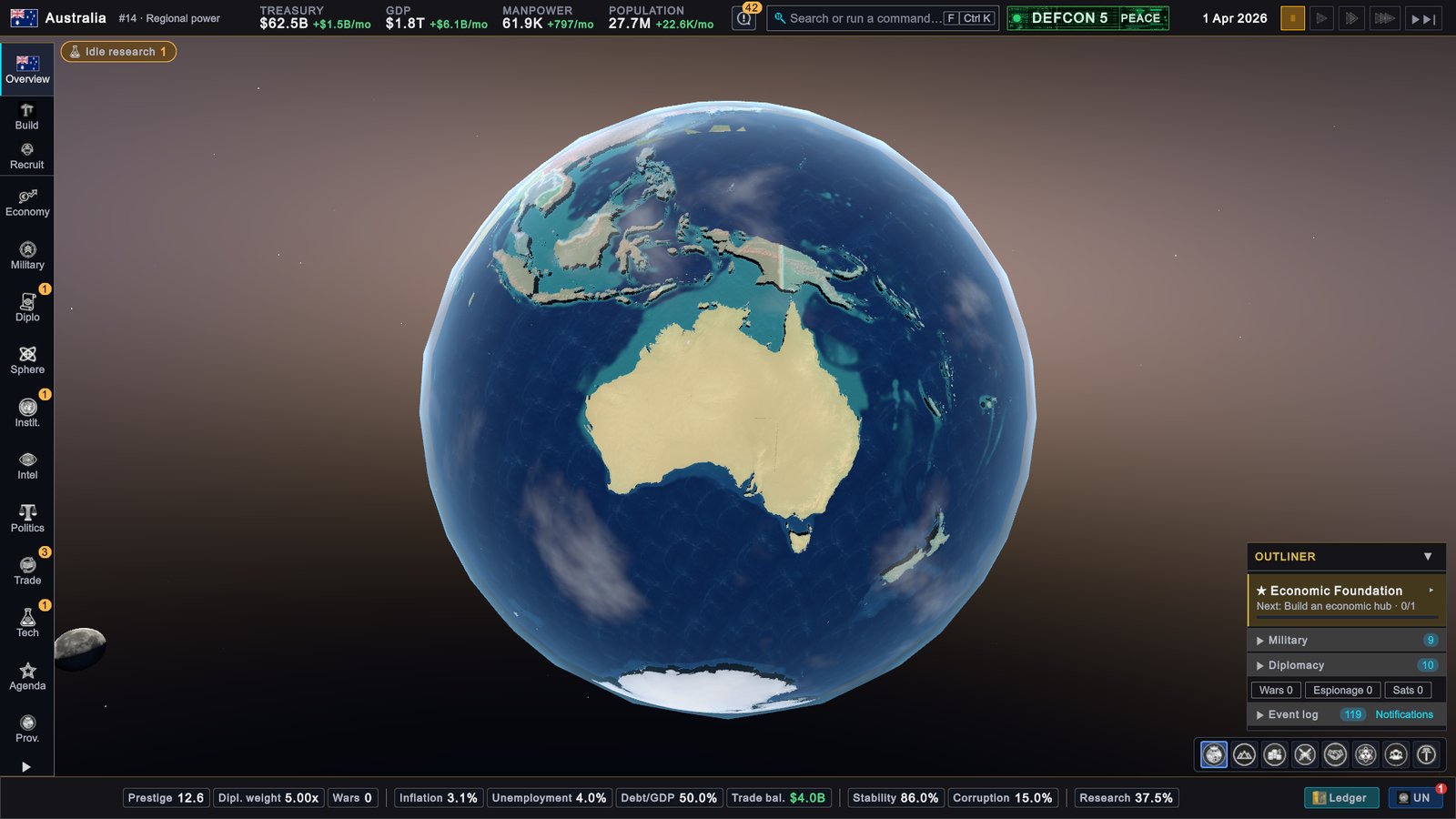
- Turn the globe with the map keys, or hold the middle mouse button and drag.
- Zoom in to go back to the flat map.
- You cannot give orders to armies, fleets or air wings from the globe. Zoom in first.
- Satellites are moved on the globe. See Satellites.
The setting Globe View in SETTINGS › GRAPHICS has three values: Full, Lite and Off. Lite is lighter for an older computer. With Off the map stays flat however far you zoom out.
Colour palettes
You can change how strong the country colours are. There are three palettes:
- Normal: the standard look.
- Vibrant: brighter colours with more contrast.
- Gloomy: darker, greyer colours.
Choose one under MAP COLORS on the country select screen, or later in SETTINGS › GRAPHICS next to Country Colors. The same tab has Sea zone borders, which shows or hides the thin lines between sea areas.
Fog of war
Fog of war means you cannot see everything other countries do. You know the whole map from the first day: every border and every country. What you do not see everywhere is other countries’ armies, fleets and air wings.
You see them only where you have vision. You have vision:
- in your own provinces and the provinces next to them,
- around your armies and fleets,
- in the territory of countries you have an alliance of your own with, and around their armies and fleets, while your relations with them are +50 or better (sharing an organization such as NATO is not enough),
- around the capital of a country where you have an embassy, a permanent diplomatic mission,
- where one of your air wings flies a Reconnaissance mission,
- under one of your reconnaissance satellites.
Places without vision are drawn a little darker and greyer.
Click a province to check. Its page shows a small label: Visible means you see it at this moment, Explored means you know the place but cannot see what is there. Hold the pointer over the label to read why. For a foreign province that is only Explored, the page shows the header alone, with a Request intelligence button.
If your screen looks different
- The colours are not the ones in the pictures. Another palette is selected, or you play a different country. In Diplomatic mode the colours depend on who you are.
- Zooming out does not show a globe. Globe View is set to Off in SETTINGS › GRAPHICS.
- The F keys do not switch modes. The keys were changed, or your keyboard needs Fn held down for the F keys. Click the buttons of the map mode bar instead.
- The map shows other colours while a page is open. The Trade page switches the map to Economy mode. An overlay is active if the legend has a ✕.