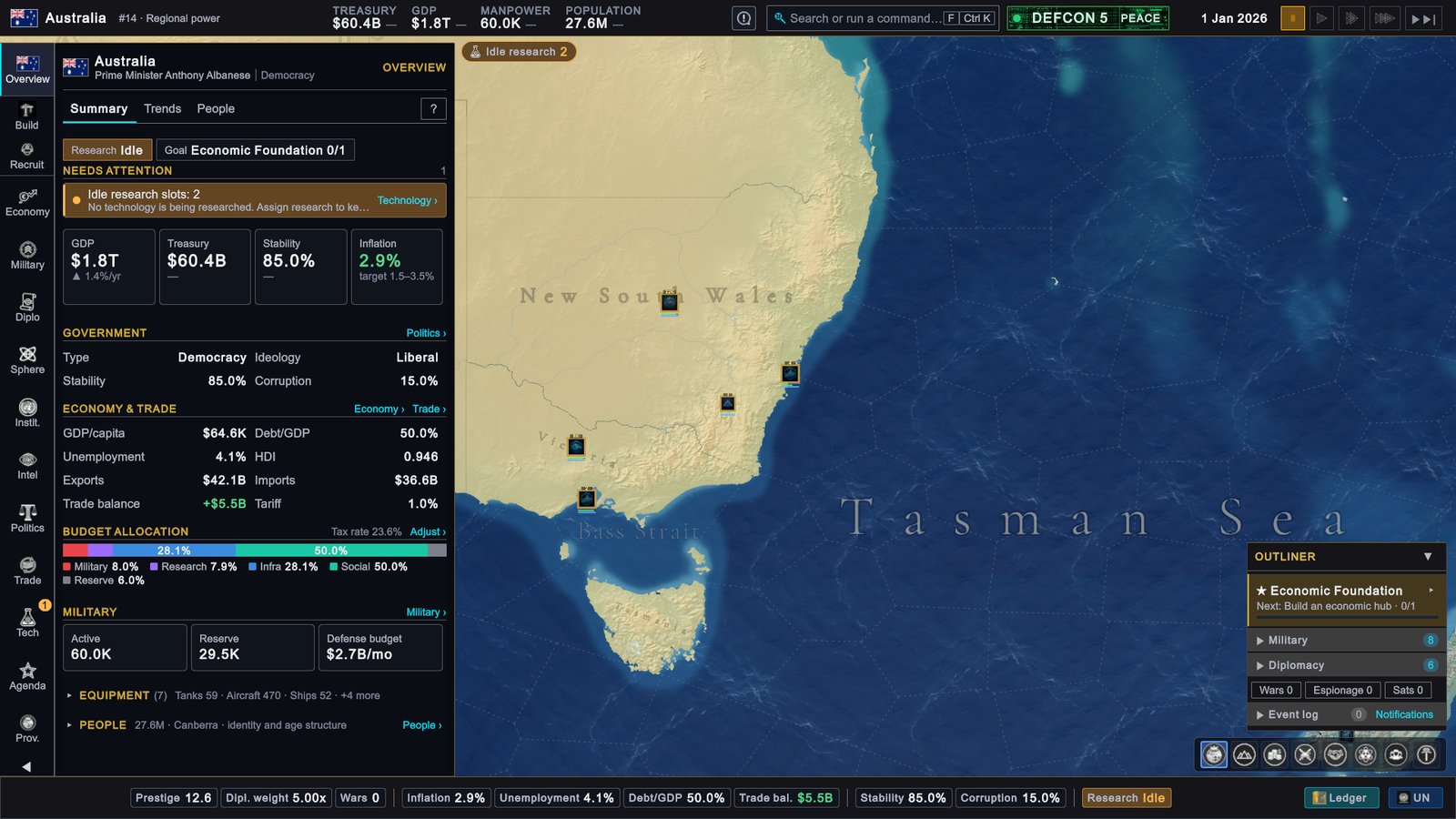
Everything you do in Global Protocol happens on one screen. It has nine parts, and each part has one job. This page names them, says what each one tells you, and says which ones you can leave alone in your first game. Keep the game paused and look at your own screen while you read.
The whole screen
 1
2
3
4
5
6
7
8
9
- Top bar. Your country, its rank, and four figures: treasury, GDP, manpower and population. Look here every month to see whether your money is going up or down.
- Speed controls. The date and five buttons: pause, three speeds and Skip to next month. The marker sits on two of the buttons. You use them every time you want time to pass.
- Priority strip. Small rounded labels at the top of the map, one for each thing that needs you. On the first day there is one, Idle research, and the marker sits on its right end. Look here whenever you do not know what to do.
- Rail. The column of buttons on the far left. Each button opens one page about your country. This is how you get everywhere.
- Sidebar page. The page that the rail button opened. On the first day it is Overview. This is where you read details and give most orders.
- Map. The world. Click a place to see what it is. You need it for moving units and for picking provinces.
- Outliner. A running list in the lower right corner: your tracked goal, your forces, your diplomacy and a log of events. Use it to see what to do next and what is under way.
- Map-mode bar. Eight round buttons that change what the map colours mean. You can leave it on the first button for a long time.
- Status bar. A row of figures along the bottom, each one a quick health check. A figure that turns amber or red deserves a look.
Top bar
From left to right, the first-day screen shows:
- Your flag and name, then “#14 · Regional power”. The number is your place in the game’s ranking of countries by power. The words are your power tier, the class of country you count as. Click it to open the Ledger, the table that compares all countries.
- TREASURY $60.4B. The treasury is the state’s money.
- GDP $1.8T. GDP is the yearly value of everything your country produces.
- MANPOWER 60.0K. Manpower is the pool of people you can recruit into the armed forces.
- POPULATION 27.6M.
- A bell. It opens the list of messages, described further down. A number on it counts the unread ones.
- A search box reading “Search or run a command…”. It is the command palette, also described further down.
- DEFCON 5 and PEACE. DEFCON is the nuclear alert level, and 5 is the calm end. PEACE is your war status. You can ignore both in a first game.
- The date and the speed buttons.
On the first day each of the four figures has a dash next to it. After the first month the dash becomes the change per month, green for up and red for down.
Speed controls
The lit button shows the current state: on the first day it is the pause button. Your first ten minutes has the table of all five buttons, and Time, speed and saving has the rest.
Priority strip
The strip shows at most three labels, called pills, and a + pill with a number when there are more. Red is bad, amber needs a decision.
- Hover a pill to read what is wrong.
- Click a pill to jump to the page that fixes it.
On the first day the only pill is Idle research with a 2: both of your research slots are empty. Your first month fills one. The full list of pills is in When something goes wrong.
Rail
Some buttons carry a short label. The wiki always uses the full name of the page.
| On the rail | Full name | What it is for | Key (by default) |
|---|---|---|---|
| Overview | Overview | A one-page summary of your country | O |
| Build | (a shortcut) | Opens Recommendations, a list of suggested buildings | |
| Recruit | (a shortcut) | Opens the list of units you can order | |
| Economy | Economy | Budget, interest rate, resources | E |
| Military | Military | Your forces, recruiting, wars | M |
| Diplo | Diplomacy | Other countries and what they ask of you | R |
| Sphere | Sphere of Influence | Gathering smaller countries around a strong one | B |
| Instit. | Institutions | The United Nations and other organizations | J |
| Intel | Intelligence | Spying on other countries | I |
| Politics | Politics | Laws and decisions at home | K |
| Trade | Trade | Buying and selling goods | X |
| Tech | Technology | Research | T |
| Agenda | Agenda | Your goals | Q |
| Prov. | Provinces | Your provinces and what is built in them | P |
A province is one of the areas your country is divided into. Australia’s carry the names of its states and territories, such as New South Wales.
Things to know about the rail:
- Build and Recruit are shortcuts into two other pages. Build lands in Provinces › Construction, and Recruit lands in Military › Recruit.
- A small number on a button counts alerts for that page. On the first day Tech carries a 1. Hover the button to read them.
- The arrow at the bottom folds the sidebar page away so you see more map. Click it again to bring the page back.
- The keys work while the pointer is over a panel, a bar or a button. With the pointer over the open map they do nothing. Clicking the rail button always works.
- You can ignore Sphere of Influence, Institutions and Intelligence in your first game.
Sidebar page
The page has a title in its top right corner and a row of tabs under the header. On Overview the tabs are Summary, Trends and People. The wiki writes a tab as Overview › Summary: first the rail button, then the tab.
- The ? button at the right end of the tab row opens help for the page you are on.
- Links ending in ›, such as Economy ›, jump to another page.
- Some views need more room and make the page wider. Recommendations is one.
- Hover almost any number for a short explanation of where it comes from.
Map
- Move with W A S D (by default) or by pushing the pointer against a screen edge.
- Zoom with the mouse wheel while the pointer is over the map.
- Left-click a province of yours to open its panel. Left-click another country to open its card.
- Right-click gives an order to a unit you have selected. With nothing selected it does nothing.
The small square icons on the land are military units. More in Controls and hotkeys.
Outliner
The panel is titled OUTLINER. On the first day it holds:
| Row | What it is |
|---|---|
| ★ Economic Foundation, “Next: Build an economic hub · 0/1” | Your tracked goal and its next step. The small arrow unfolds the steps. |
| Military 8 | Your armies, fleets and air wings. Click the row to unfold the list. |
| Diplomacy 6 | Your alliances, agreements and running diplomatic actions. |
| Wars 0, Espionage 0, Sats 0 | Three counters: wars you are in, spy operations, satellites. |
| Event log 0 | A record of what happened. It fills up as soon as time passes. |
| Notifications | Opens the same list of messages as the bell. |
The triangle next to the title folds the whole outliner away.
Map-mode bar
A map mode changes what the colours on the map mean. The first button, Political, colours each country differently, and it is the one that is lit on the first day. The others show terrain, the economy, military forces, relations, nuclear matters, population and resources. Hover a button for its name. F1 to F7 (by default) switch between the first seven. All of them are explained in Map modes and the globe.
Status bar
Each chip is one figure. On the first day:
| Chip | First-day value | In plain words |
|---|---|---|
| Prestige | 12.6 | Your standing in the world |
| Dipl. weight | 5.00x | Extra weight from memberships such as the G20 |
| Wars | 0 | Wars you are in |
| Inflation | 2.9% | How fast prices rise in a year |
| Unemployment | 4.1% | The share of workers without a job |
| Debt/GDP | 50.0% | The state’s debt compared with a year of GDP |
| Trade bal. | $5.5B | Exports minus imports for a month |
| Stability | 85.0% | How calm and orderly the country is |
| Corruption | 15.0% | How much of the state’s money leaks away |
| Research | Idle | What is being researched, as a percentage once something is |
Hover a chip to see what moves the number. Click it to open the page that controls it. At the right end, Ledger opens the table that compares all countries, and UN opens Institutions › Agenda, the list of matters that international organizations are voting on.
The panel on the right
When you click a province or a country on the map, a panel opens on the right side of the screen. The outliner shrinks to a narrow column of round counters at the right edge to make room.
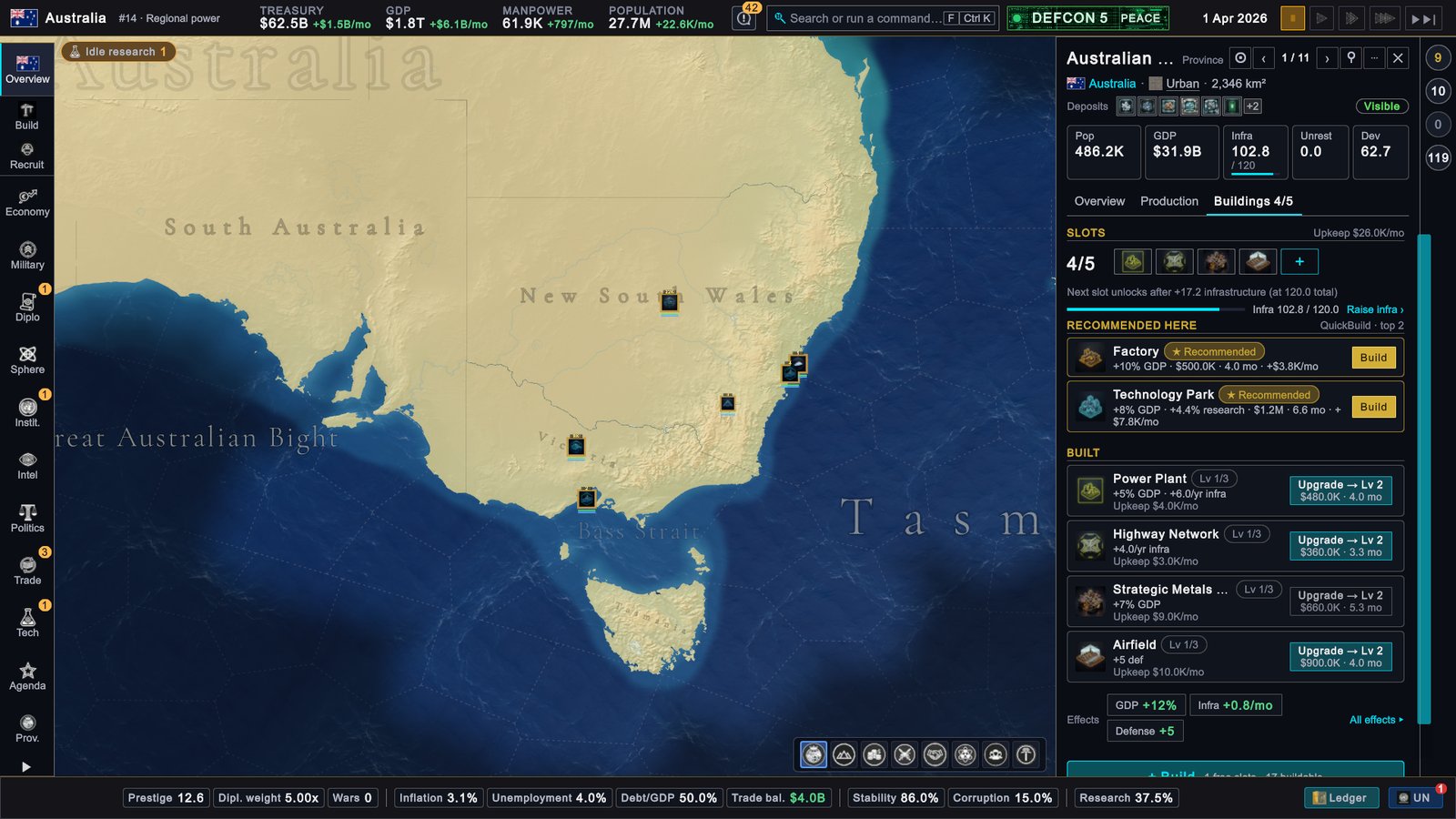
A province panel has five tiles at the top (Pop, GDP, Infra, Unrest, Dev) and three tabs: Overview, Production and Buildings. In the picture the Buildings tab shows 4 of 5 building slots in use, two suggestions with a Build button each, and the four buildings that stand there with an Upgrade button each. A building slot is a place for one building.
A country card opens when you click another country. It has four tabs: Overview, Relations, Intel and Politics. A value shown as ”???” means you do not know it. The Relations tab holds the buttons for everything you can offer or do to that country.
In the header of the panel:
- On a province panel, ‹ and › step to the previous and next province. The counter between them read 1 / 11 in this game.
- ⋯ opens a short menu of further actions.
- ✕ closes the panel.
Toasts and the notification centre
A toast is a small message that slides in at the top right of the map. At most three show at once.
- Waiting for your answer is not an ordinary toast. This card stays at the top of the column and counts the requests from other countries that need a yes or no. It shows the nearest deadline. Click it to review them.
- The other toasts report results of your own orders, warnings, and news from the world. They fade by themselves and do not pause the game.
- When more are waiting, a line under the toasts reads “more in Notifications”.
Every toast is kept. Click the bell in the top bar, or press N (by default), to open the notification centre.
- The buttons at the top filter the list: All, Results, Action, Warning, World, Mine and Events.
- Pending actions lists what still waits for you, each with a Review button and the days left.
- Mark all read clears the number on the bell.
- Mute on a row stops that kind of message from popping up. It is still recorded here.
The command palette
Click the search box in the top bar, or press F (by default), and type what you are looking for: the palette finds pages, numbers, actions, countries and glossary entries. See Controls and hotkeys.
If your screen looks different
- There is no page on the left, only the rail. The sidebar page is folded away. Click the arrow at the bottom of the rail, or any rail button.
- The outliner is a column of round numbers. A panel is open on the right. Close it with ✕.
- You play another country, or it is not the first day. The parts are in the same places. The figures, the pills on the priority strip and the rows of the outliner are different, and the rail may carry more numbers.
- Parts of the screen are missing or look unfamiliar. A mod, a change to the game made by players, can replace or hide parts of the screen. The text size of each part can also be changed in SETTINGS › GAMEPLAY; see Settings worth changing.
Next
Your first month: the first orders, one click at a time.